Install guide
How to install PhotoGIMP
Installing PhotoGIMP means copying a few settings files into the folder GIMP reads at startup. Almost every failed install comes down to one thing: the files went into the wrong folder. This page tells you the right one.
On this page 8 sections
Short answer
The short version
- Install GIMP 3 from gimp.org, start it once and close it. That creates its settings folder.
- Download PhotoGIMP.zip (Windows and macOS) or PhotoGIMP-linux.zip (Linux) from GitHub and extract it.
- Copy what is inside its
3.0folder into GIMP’s settings folder for your version:3.2for GIMP 3.2,3.0for GIMP 3.0. Replace the files when asked. - On GIMP 3.2 only: rename the Paths tool in
toolrcbefore you start GIMP (why), or use the commands below, which do it for you. - Start GIMP. The splash says PhotoGIMP and the toolbox is one column starting with Move.
Installing GIMP 3.2 for the first time? Put the zip’s 3.0 folder into GIMP’s settings folder before you start GIMP the first time, and GIMP migrates it and applies the 3.2 fix itself. Tested on all four systems.
Find your folder and commands
Choose your system, GIMP version and how you installed GIMP. The commands make a backup first, check that the download is the real 3.1 release, copy the files and apply the GIMP 3.2 fix. We pasted the install command shown for GIMP 3.2 on Windows 11, Windows Server 2025, macOS 15 and Linux, exactly as you would; under each command the path finder says whether we ran that exact combination.
The one rule: the folder is named after your GIMP version
GIMP keeps its settings in a folder named after its first two version numbers. GIMP 3.0.8 reads 3.0. GIMP 3.2.0 to 3.2.6 read 3.2. The PhotoGIMP zip always contains a folder called 3.0, because it was made for GIMP 3.0. So on GIMP 3.2 you copy the contents of that folder into 3.2.
You can check your version in GIMP under Help → About GIMP. If you have more than one GIMP installed, each version has its own folder, and PhotoGIMP only affects the one you copy it into.
Every settings folder, by system
| System | How GIMP was installed | GIMP 3.2 settings folder | Checked by us |
|---|---|---|---|
| Windows 10 and 11 | Installer from gimp.org | %APPDATA%\GIMP\3.2That is C:\Users\you\AppData\Roaming\GIMP\3.2. Not AppData\Local, which GIMP also creates. | Windows 11, Server 2025 and 2022 |
| Microsoft Store | %APPDATA%\GIMP\3.2the same folder as the installer version, not a private app folder | Server 2025, Store 3.2.60.0 | |
| GIMP Portable | GIMPPortable\Data\GimpAppDatafor the PortableApps.com package; other portable builds: check in GIMP, see the portable guide | Server 2025, Portable 3.2.6 Rev 3 | |
| macOS | DMG from gimp.org | ~/Library/Application Support/GIMP/3.2 | macOS 15, Apple Silicon and Intel |
Homebrew (brew install --cask gimp) | same as the DMG | macOS 15, Apple Silicon | |
| Linux | AppImage, distro package | ~/.config/GIMP/3.2 | AppImage, Ubuntu 24.04distro packages not tested |
| Flatpak (Flathub) | ~/.config/GIMP/3.2the Flathub build is allowed to use this folder (--filesystem=xdg-config/GIMP:create) | Ubuntu 24.04, Flathub 3.2.6 | |
| Snap | ~/.config/GIMP/3.2your real home folder, not ~/snap/gimp/… | Ubuntu 24.04, Snap 3.2.6 | |
| Older guides: Flatpak | ~/.var/app/org.gimp.GIMP/config/GIMP/…outdated for current Flathub builds | not used: stayed empty |
For GIMP 3.0, replace 3.2 with 3.0. If you are unsure, the path finder’s Ask GIMP command makes GIMP print the folder it actually uses.
Before you start
Use GIMP 3
PhotoGIMP 3.1 needs GIMP 3.0 or newer. The current version is GIMP 3.2.6 (September 10, 2026). PhotoGIMP does not work with GIMP 2.10.Start GIMP once, then close it
GIMP creates its settings folder on the first start. Without it there is nowhere to copy PhotoGIMP. Close GIMP completely before copying, because GIMP rewrites some of these files when it quits.Back up if you customized GIMP
PhotoGIMP replaces your shortcuts, toolbox order, window layout and some preferences. Your brushes, fonts, palettes, plug-ins and scripts are not touched. Our commands make a backup automatically; by hand, copy the version folder somewhere safe.Download from GitHub only
PhotoGIMP has no official website. Get the zip from github.com/Diolinux/PhotoGIMP/releases. Our download page lists the files and their SHA-256 hashes.
Which zip do you need?
| File | For | What is inside |
|---|---|---|
| PhotoGIMP.zip | Windows and macOS | One folder, 3.0, with the settings files |
| PhotoGIMP-linux.zip | Linux | PhotoGIMP-linux/.config/GIMP/3.0 with the same files, plus a launcher and icons in .local. No install.sh in 3.1, even though the README mentions one. |
| photogimp.ico | Windows, optional | The PhotoGIMP logo as an icon for your GIMP shortcut |
How to tell it worked
- The splash screen while GIMP loads shows PhotoGIMP by Diolinux.
- The toolbox is one column on the left: Move, Rectangle Select, Free Select, Fuzzy Select, Crop, Scale, Color Picker, Healing, Paintbrush and so on.
- Pressing V selects the Move tool and B the Paintbrush.
- GIMP shows its “You installed GIMP 3.2.6!” welcome, usually once. That is expected: PhotoGIMP’s settings say they were made for GIMP 3.0.
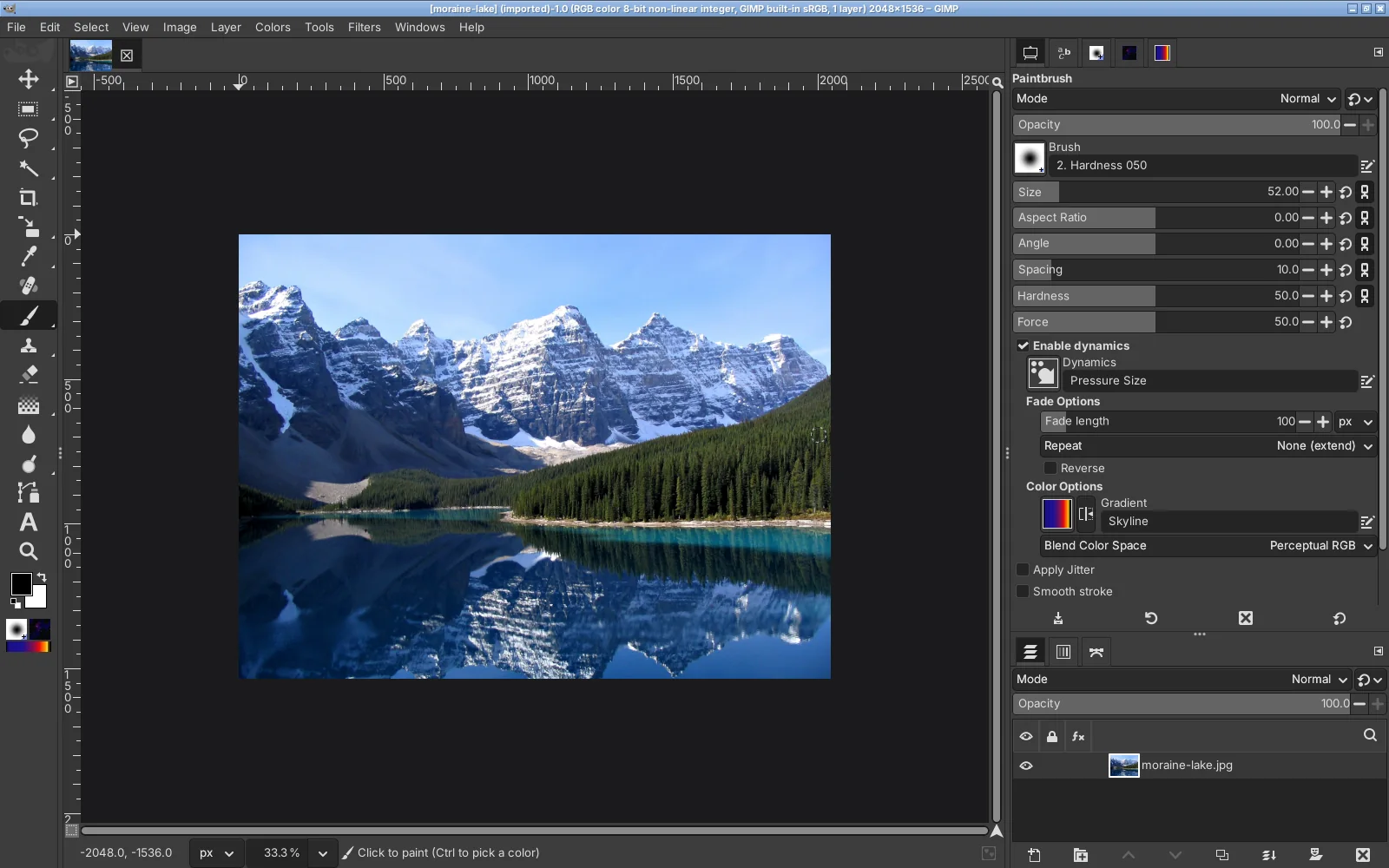
Only the splash changed, or nothing changed? See troubleshooting. The toolbox is still a grid? That is the GIMP 3.2 toolbox problem.
Install guides by system
Questions
Do I need to install GIMP first?
Where do I paste the PhotoGIMP files?
Do I need administrator rights?
Will PhotoGIMP delete my brushes or plug-ins?
How do I update PhotoGIMP?
Can I install PhotoGIMP with Chocolatey?
Keep going
Found something wrong or out of date? Tell us: hello@photogimp.org. We fix mistakes within a day.