Install · Portable
PhotoGIMP with a portable GIMP
A portable GIMP keeps its settings next to the program, often on a USB stick, instead of in your user profile. So the folder from the normal guides is the wrong one. Here is how to find the right one, and why it has no 3.2 in its name. Tested with GIMP Portable 3.2.6 Rev 3 from PortableApps.com on November 1, 2026.
On this page 6 sections
Short answer
The short version
- Find the settings folder. For GIMP Portable from PortableApps.com it is
GIMPPortable\Data\GimpAppData. For any other portable GIMP, open Edit → Preferences → Folders → Brushes: the first path ends inbrushes, and the folder above it is the settings folder. - Close GIMP. Copy the contents of the PhotoGIMP zip’s
3.0folder into that settings folder, replacing files. - On GIMP 3.2, apply the toolrc fix in that folder, then start GIMP.
How a portable GIMP picks its settings folder
GIMP has a setting for exactly this: the GIMP3_DIRECTORY environment variable. When it is set, GIMP uses that folder for all its settings instead of %APPDATA%\GIMP\3.2 or ~/.config/GIMP/3.2. Portable launchers can set it to a folder inside the portable package before starting GIMP.
We checked this with GIMP 3.2.6: started with GIMP3_DIRECTORY pointing at an empty folder, GIMP reported that folder as its settings folder and created its usual files there (brushes, filters, fonts and the rest) directly inside it. Two things follow for PhotoGIMP:
- There is no version sub-folder. The files go straight into the folder GIMP names, not into a
3.2folder inside it. - The normal folder is ignored. Copying PhotoGIMP into
%APPDATA%\GIMP\3.2does nothing for a portable GIMP, which is the usual reason “nothing changed”.
Find the folder
In the portable GIMP: Edit → Preferences → Folders → Brushes. You see two paths. The first is your own brushes folder, inside the settings folder; the second is GIMP’s built-in brushes. The settings folder is the first path without its last part, brushes.
In the portable GIMP: Filters → Development → Python-Fu → Python Console, then type:
from gi.repository import Gimp; print(Gimp.directory())GIMP prints the exact settings folder. This is the same function GIMP uses internally; it is what we used to check GIMP3_DIRECTORY.
Install PhotoGIMP into it
Start the portable GIMP once, then close it
The first start creates the settings folder with GIMP’s defaults.Download and extract PhotoGIMP
Get PhotoGIMP.zip from GitHub and extract it. You get a folder named3.0.Copy the contents
Copy everything inside3.0into the settings folder you found, and replace existing files. Keep a copy of the folder first if you have customized this GIMP.Apply the GIMP 3.2 fix if needed
If the portable GIMP is 3.2 (Help → About GIMP), opentoolrc,sessionrcandshortcutsrcin that folder with a text editor and make the three replacements from the GIMP 3.2 page.Start the portable GIMP
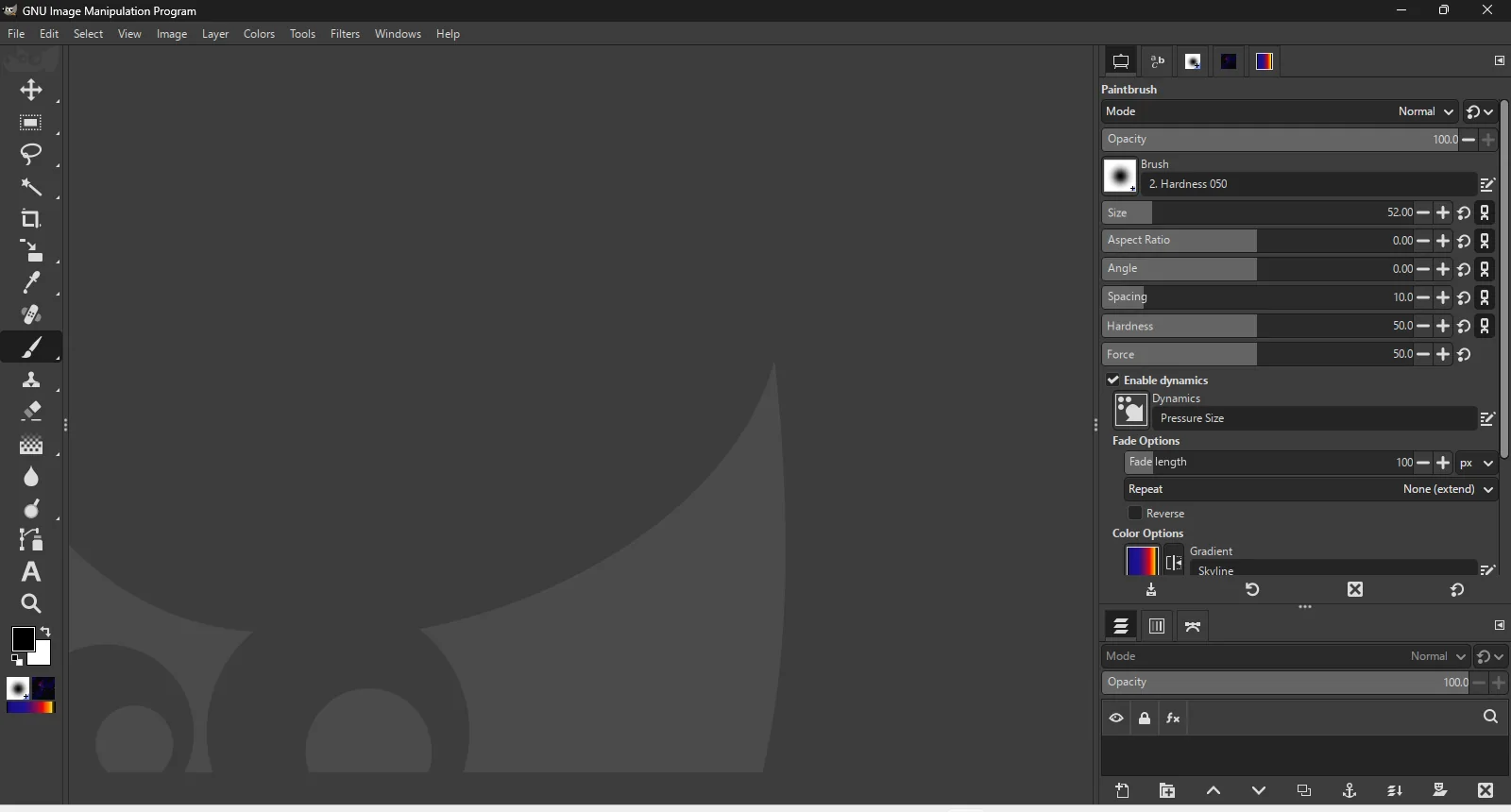
You should see the PhotoGIMP splash and a single column of tools. If the toolbox is still a grid, the fix was skipped or GIMP was open while you copied.
Make your own portable GIMP (Windows)
If you only need GIMP with PhotoGIMP on a USB stick, you can set GIMP3_DIRECTORY yourself. Copy the GIMP program folder (for a per-user install, %LOCALAPPDATA%\Programs\GIMP 3) to the stick, create an empty profile folder next to it, and save this as start-gimp.cmd in the same place:
@echo off
set "GIMP3_DIRECTORY=%~dp0profile"
start "" "%~dp0GIMP 3\bin\gimp-3.2.exe"
Start GIMP once with it and close it, then copy PhotoGIMP into profile as above. %~dp0 is the folder the script is in, so it works whatever drive letter the stick gets. We verified GIMP3_DIRECTORY on Linux, and on Windows through GIMP Portable’s launcher, which uses the same setting (below). This exact script we have not run from a USB stick.
PortableApps.com GIMP Portable: tested
GIMP Portable is a third-party package of GIMP from PortableApps.com. We downloaded GIMP Portable 3.2.6 Rev 3 (GIMPPortable_3.2.6_Rev_3.paf.exe), installed it with its own installer to C:\pa\GIMPPortable, and started it through GIMPPortable.exe on Windows Server 2025:
- The settings folder is
GIMPPortable\Data\GimpAppData. The package’s launcher setsGIMP3_DIRECTORYto it (lineGIMP3_DIRECTORY=%PAL:DataDir%\GimpAppDatain its launcher settings), so there is no3.2sub-folder.%APPDATA%\GIMPstayed empty. - Start it once first. The launcher fills
DatafromApp\DefaultData. We started GIMP Portable once and closed it before copying anything, as with any GIMP. - PhotoGIMP works there. We copied the contents of the zip’s
3.0folder intoData\GimpAppDataand applied the GIMP 3.2 fix. GIMP started with the Photoshop toolbox, and after two normal quitstoolrcwas still the fixed file (hashes). - Not
App\DefaultData. Some forum posts point there. It holds the starting files the launcher copies intoDataon the first start, so changing it later has no effect. - Use the installer. When we unpacked the
.paf.exewith 7-Zip instead of running it, the launcher stopped with an “Integrity Failure Warning” and asked whether to start GIMP Portable in an unsupported state.
Questions
Why did PhotoGIMP not change my portable GIMP?
%APPDATA%\GIMP\3.2), which a portable GIMP does not use, or into App\DefaultData. For PortableApps.com GIMP Portable the folder is GIMPPortable\Data\GimpAppData; for others, find it with Edit → Preferences → Folders and copy the files there.Where does GIMP Portable keep its settings?
Do I put the files in a 3.2 folder inside the portable profile?
Does PhotoGIMP itself have a portable version?
Keep going
Found something wrong or out of date? Tell us: hello@photogimp.org. We fix mistakes within a day.