Install · macOS
How to install PhotoGIMP on a Mac
Tested on macOS 15 with GIMP 3.2.6: on Apple Silicon with the gimp.org DMG and with Homebrew, and on an Intel Mac with the Intel DMG. All three gave identical files. The screenshots on this page come from those test Macs.
On this page 6 sections
Short answer
Quick steps
- Install GIMP 3.2.6 from gimp.org (pick Apple Silicon or Intel), open it once, then quit it with Cmd+Q.
- Download PhotoGIMP.zip (the same zip as for Windows) and open it. Finder extracts a folder called
3.0. - In Finder press Shift+Cmd+G, go to
~/Library/Application Support/GIMP/3.2. - Copy everything inside the extracted
3.0folder into3.2and choose Replace. - Apply the GIMP 3.2 fix (three renames), or use the Terminal command below, which does all of this in one go.
GIMP 3.2 not started yet?
Before you open GIMP for the first time, create the folder~/Library/Application Support/GIMP and copy the zip’s 3.0 folder itself into it, so you have ~/Library/Application Support/GIMP/3.0. GIMP 3.2 migrates it to 3.2 and applies the 3.2 fix on its own; we tested this on Windows, macOS and Linux. How it works.The one-command way (Terminal)
Open Terminal (Applications → Utilities), paste the command and press Return. It refuses to run while GIMP is open, checks that the zip is the real 3.1 release, backs up your settings, copies PhotoGIMP and applies the GIMP 3.2 fix. We pasted exactly this into Terminal (zsh) on macOS 15: the hash check passed, GIMP printed no toolbox warnings, and the Photoshop toolbox order was still there after quitting with Cmd+Q and starting again, twice. With GIMP open, the command refused to run and changed nothing.
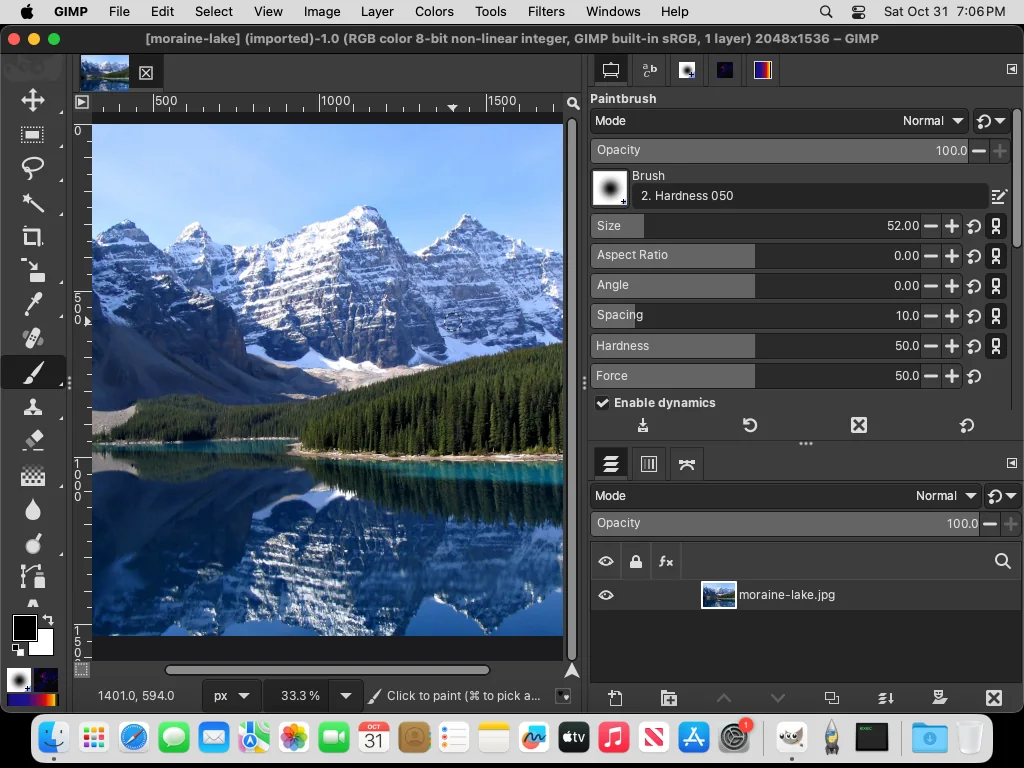
Step by step in Finder
We copied with Finder on two test Macs (Intel and Apple Silicon): the zip extracted with Archive Utility, the 3.0 folder’s contents copied into 3.2 with Finder’s Replace, then the fix. GIMP kept the Photoshop toolbox after quitting. One thing to know first, in step 4.
Install GIMP and open it once
Download the DMG for your Mac from gimp.org, drag GIMP to Applications, open it, then quit it. On our Mac the first start created~/Library/Application Support/GIMP/3.2. macOS 15 also asked whether GIMP may find devices on the local network; either answer is fine for PhotoGIMP.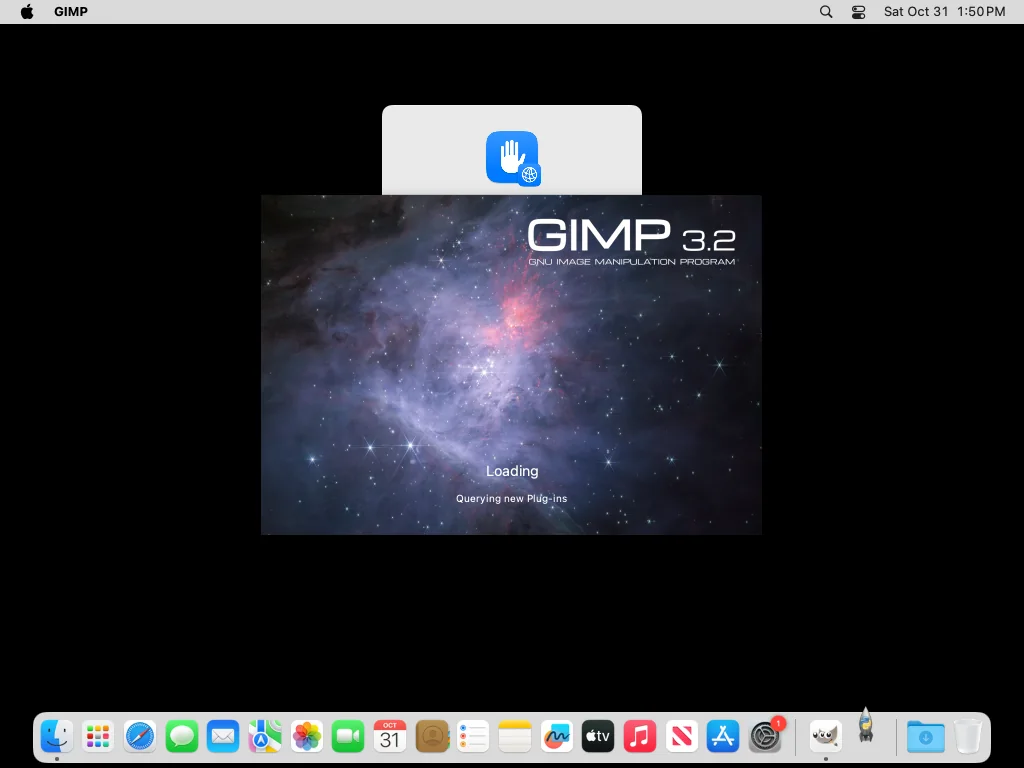
Real screenshot · macOS 15 (Apple Silicon) · GIMP 3.2.6macOS asks whether GIMP may find devices on local networks the first time it starts. Download and open PhotoGIMP.zip
Get PhotoGIMP.zip from GitHub. Double-click it in Downloads: the zip contains one folder,3.0. That folder name is fine even on GIMP 3.2; you only need what is inside.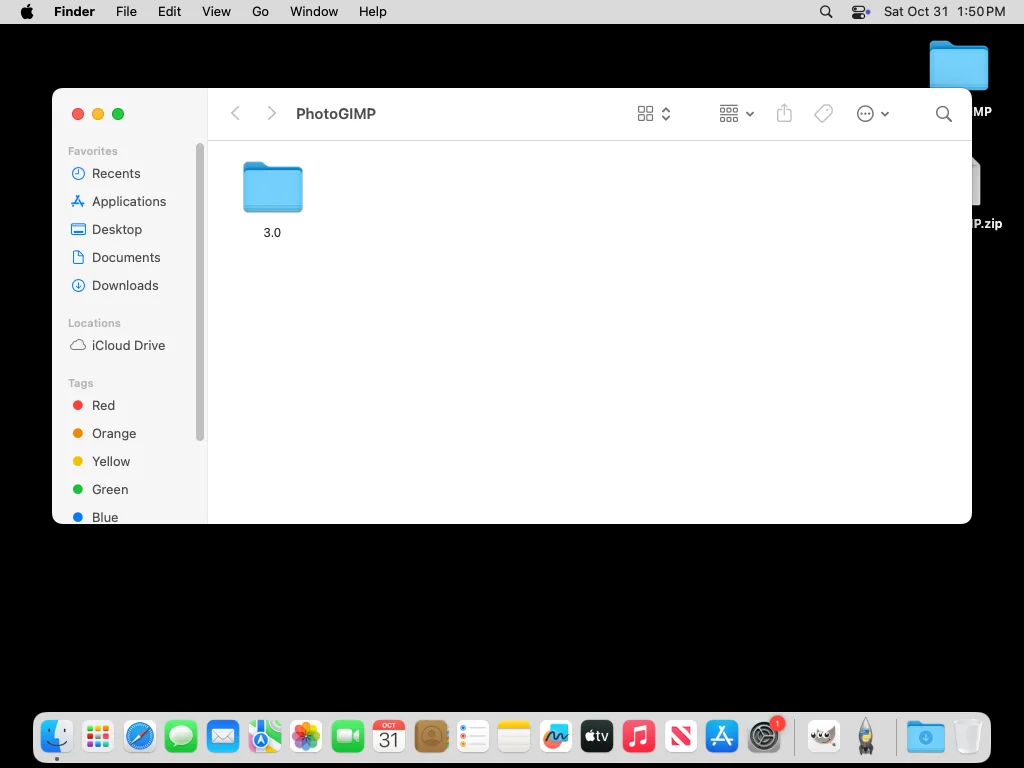
Real screenshot · macOS 15 (Apple Silicon) · GIMP 3.2.6PhotoGIMP.zip extracted on the Desktop with Finder: one folder, 3.0. Open GIMP’s settings folder
In Finder, press Shift+Cmd+G (Go → Go to Folder…), type~/Library/Application Support/GIMPand press Return. The Library folder is hidden by default, which is why the Go to Folder dialog is the easiest way in.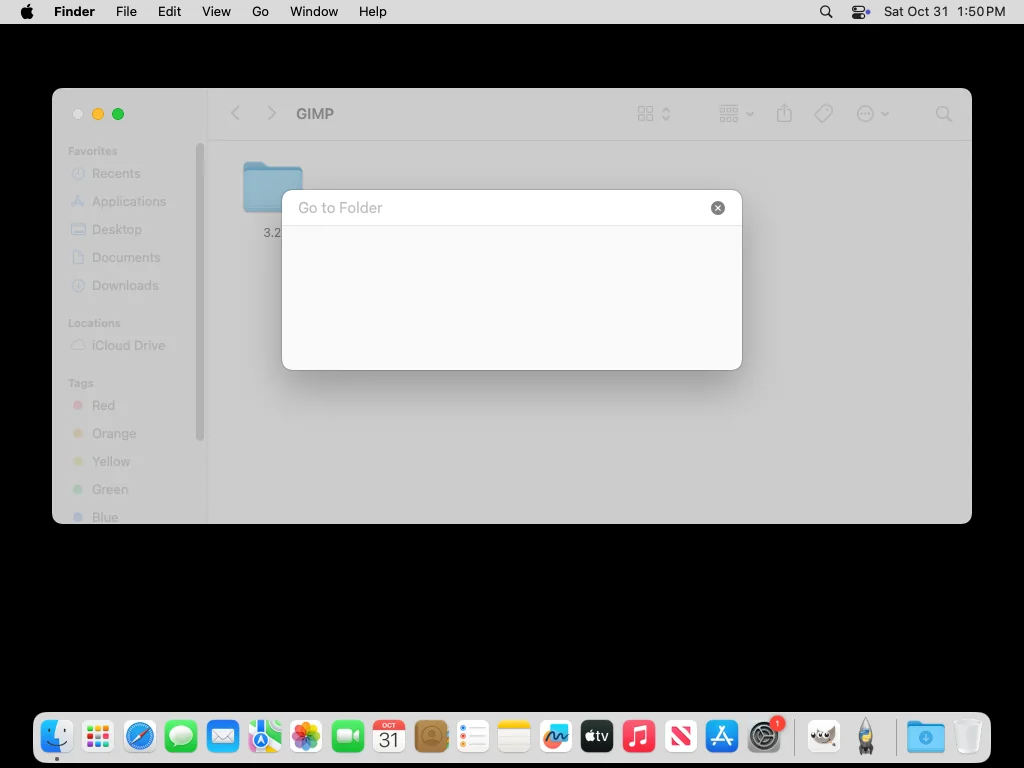
Real screenshot · macOS 15 (Apple Silicon) · GIMP 3.2.6Finder’s Go to Folder dialog (Shift+Cmd+G). 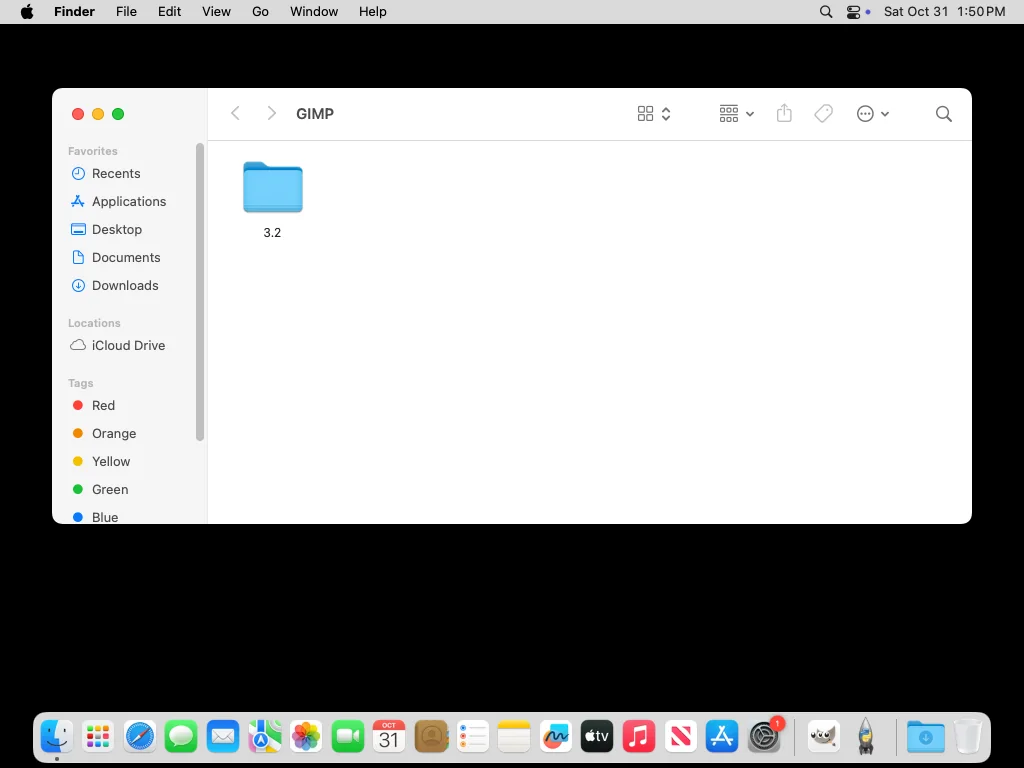
Real screenshot · macOS 15 (Apple Silicon) · GIMP 3.2.6GIMP 3.2.6 created a 3.2 folder. That is where PhotoGIMP goes. Copy the files, not the folder
Open the extracted3.0folder, press Cmd+A and Cmd+C. Open the3.2folder and press Cmd+V. When Finder asks about items with the same name, choose Replace (tick “Apply to all”). For folders that exist on both sides, such astool-options, Finder’s Replace swaps the whole folder rather than merging it. We checked: a file we had put in3.2/tool-optionswas gone after the copy, on both Macs. On a fresh GIMP that does not matter; if you saved tool presets of your own, use the Terminal command, which merges (and makes a backup). Do not drag the3.0folder itself next to3.2: once a3.2folder exists, GIMP 3.2 ignores it.Apply the GIMP 3.2 fix
Opentoolrc,sessionrcandshortcutsrcin the 3.2 folder with a plain-text editor and make the three replacements listed on the GIMP 3.2 page. In TextEdit choose Format → Make Plain Text first, and when saving keep the file names exactly (no.txt). This step is not needed on GIMP 3.0.Open GIMP
You see the PhotoGIMP splash, GIMP’s welcome screen (close it), and then the PhotoGIMP layout.
The README’s Terminal method
PhotoGIMP’s README offers an rsync command for when Finder’s merge skips files. It copies correctly; on GIMP 3.2 you still need the fix afterwards. In our test it reported “Transfer starting: 36 files”, then GIMP printed the toolrc error from the GIMP 3.2 page until the fix was applied.
rsync -av --ignore-times ~/Downloads/3.0/ ~/Library/Application\ Support/GIMP/3.2/
cd ~/Library/Application\ Support/GIMP/3.2
sed -i '' 's/"gimp-vector-tool"/"gimp-path-tool"/' toolrc
sed -i '' 's/"gimp-vectors-list"/"gimp-path-list"/' sessionrc
sed -i '' 's/"tools-vector"/"tools-path"/' shortcutsrc
Adjust ~/Downloads/3.0/ to where Finder extracted the zip. Both paths must end with a slash.
If the GIMP window is bigger than your screen
PhotoGIMP saves a main window of 1888×1011 pixels from the computer it was made on. On our 1024×768 test Mac, GIMP opened that window hanging off the left edge of the screen, with the toolbox out of sight:
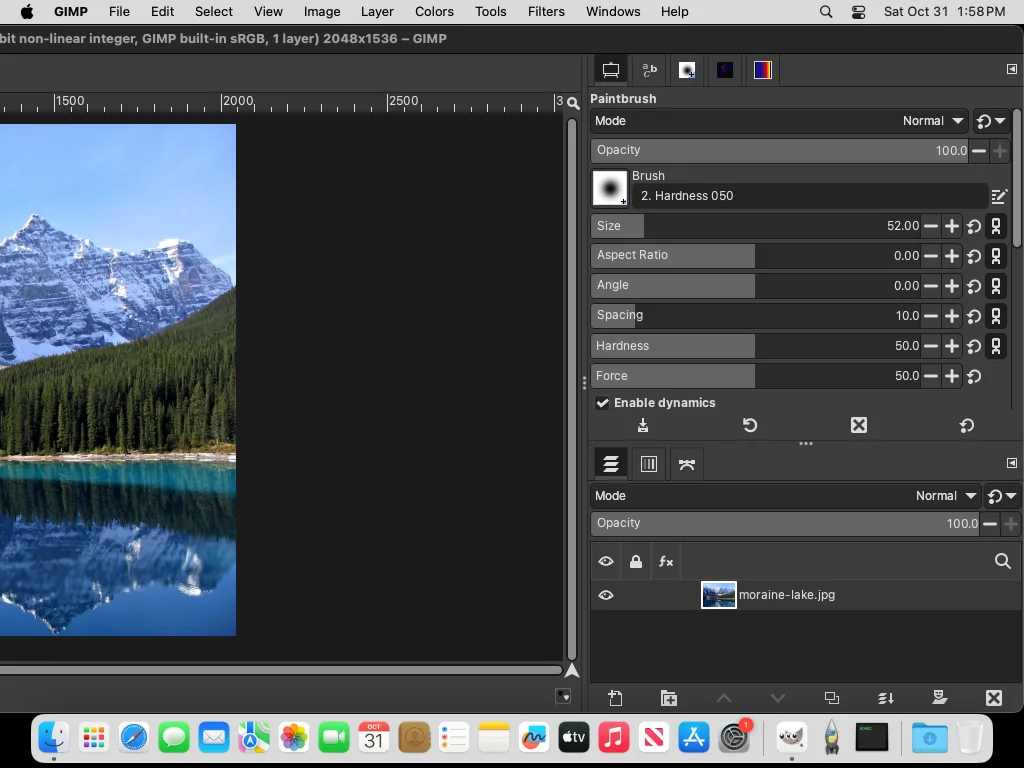
Fix: double-click the window’s title bar (or click the green button) to fit it to the screen, then quit GIMP normally (Cmd+Q): GIMP saves the new size. Dialogs saved at large sizes (Settings, Keyboard Shortcuts, Export) may need the same. Resetting all window positions in GIMP → Settings → Interface → Window Management also works, but removes PhotoGIMP’s dock layout. Off-screen window fixes.
Mac notes
- Shortcuts: PhotoGIMP’s Ctrl shortcuts are Cmd on a Mac, and Alt is Option: Cmd+J duplicates a layer, Cmd+T transforms.
- Apple Silicon and Intel: use the matching GIMP DMG. PhotoGIMP itself is identical for both; it contains no program code. We ran every step on both kinds of Mac.
- Gatekeeper: PhotoGIMP has nothing to open or approve; only GIMP itself is an app.
- Old 2.10 folder: the README suggests deleting a leftover
2.10folder in~/Library/Application Support/GIMP. GIMP 3.2 does not read it for its own settings, but GIMP can copy settings from an older version’s folder the first time a new version starts, so removing it avoids carrying old settings over. - Homebrew:
brew install --cask gimpinstalls the same GIMP.app, so the folder is the same. We tested it: every step gave the same files as with the DMG.
Questions
Does PhotoGIMP work on M1, M2, M3 and M4 Macs?
Where is the GIMP folder on a Mac?
Why did nothing change after I copied PhotoGIMP?
Is there a PhotoGIMP app for Mac?
Keep going
Found something wrong or out of date? Tell us: hello@photogimp.org. We fix mistakes within a day.