Tested on October 31, 2026 on Windows 11 (25H2, Arm64), Windows Server 2025 (x64, the same Explorer as Windows 11) and Windows Server 2022 (the Windows 10 generation) with GIMP 3.2.6 from gimp.org, and with GIMP from the Microsoft Store. Every screenshot here comes from those machines.
Install GIMP 3.2.6 from gimp.org, start it once and close it.
Download PhotoGIMP.zip and extract it (right-click → Extract All). You get a folder named 3.0.
Press Windows+R, type %APPDATA%\GIMP, press Enter, and open the 3.2 folder.
Copy everything inside the extracted 3.0 folder into 3.2, and choose “Replace the files in the destination”.
Apply the GIMP 3.2 fix in Notepad (three replacements), then start GIMP. Or run the PowerShell command below, which does steps 2 to 5.
GIMP 3.2 not started yet?
Before you open GIMP for the first time, create the folder %APPDATA%\GIMP and copy the zip’s 3.0 folder itself into it, so you have %APPDATA%\GIMP\3.0. GIMP 3.2 migrates it to 3.2 and applies the 3.2 fix on its own; we tested this on Windows, macOS and Linux. How it works.
Open Windows PowerShell from the Start menu (not as administrator), paste the command and press Enter. It stops if GIMP is running, downloads the 3.1 zip from GitHub and checks its SHA-256, backs up your GIMP settings, copies PhotoGIMP and applies the GIMP 3.2 fix. We pasted exactly this command into PowerShell on Windows 11 (Arm64), Windows Server 2025 and Windows Server 2022: the hash check passed, GIMP started with the Photoshop toolbox, and the order was still there after closing and reopening GIMP twice. With GIMP open, the command refused to run and changed nothing.
Install path finderruns in your browser
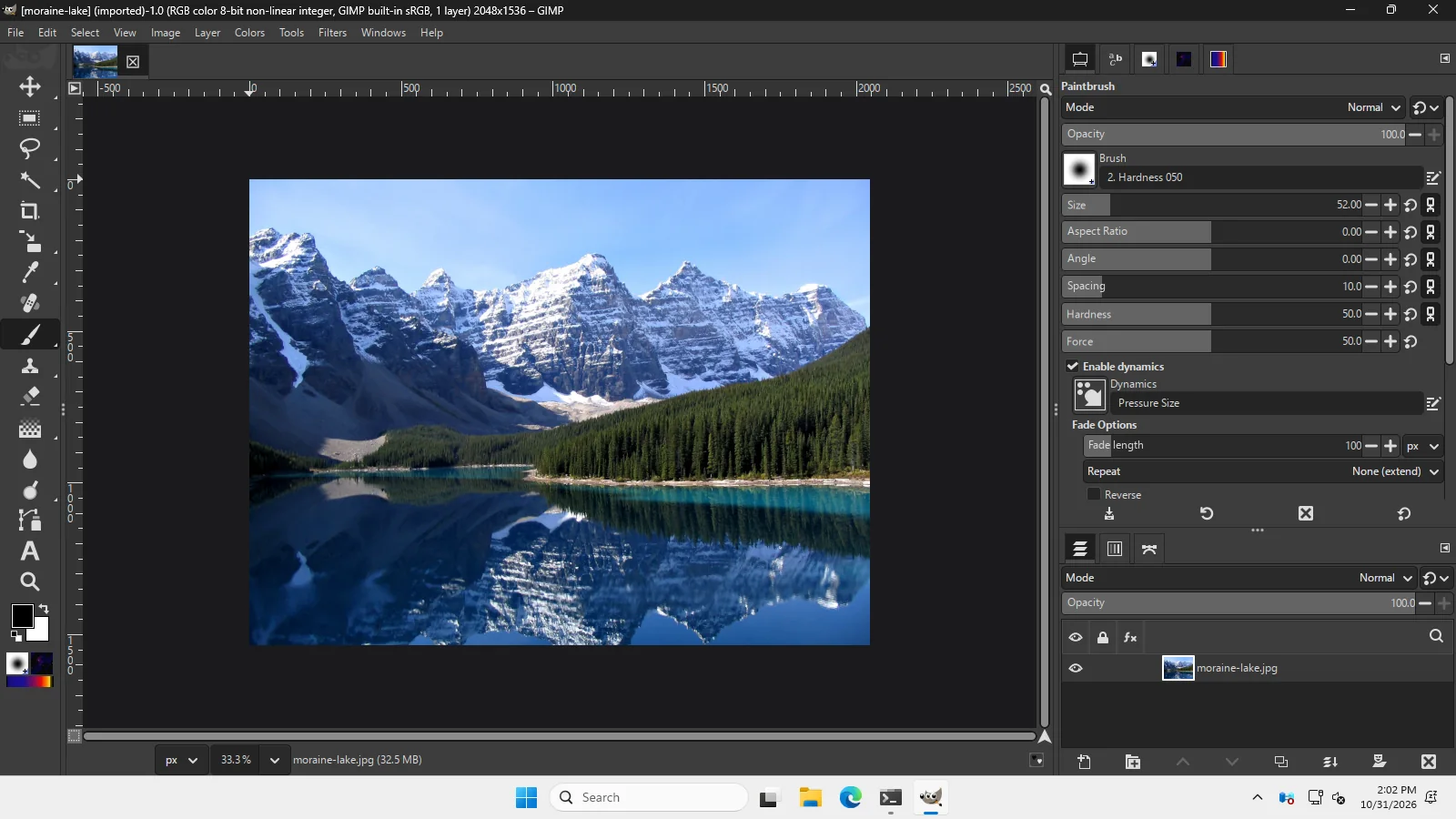
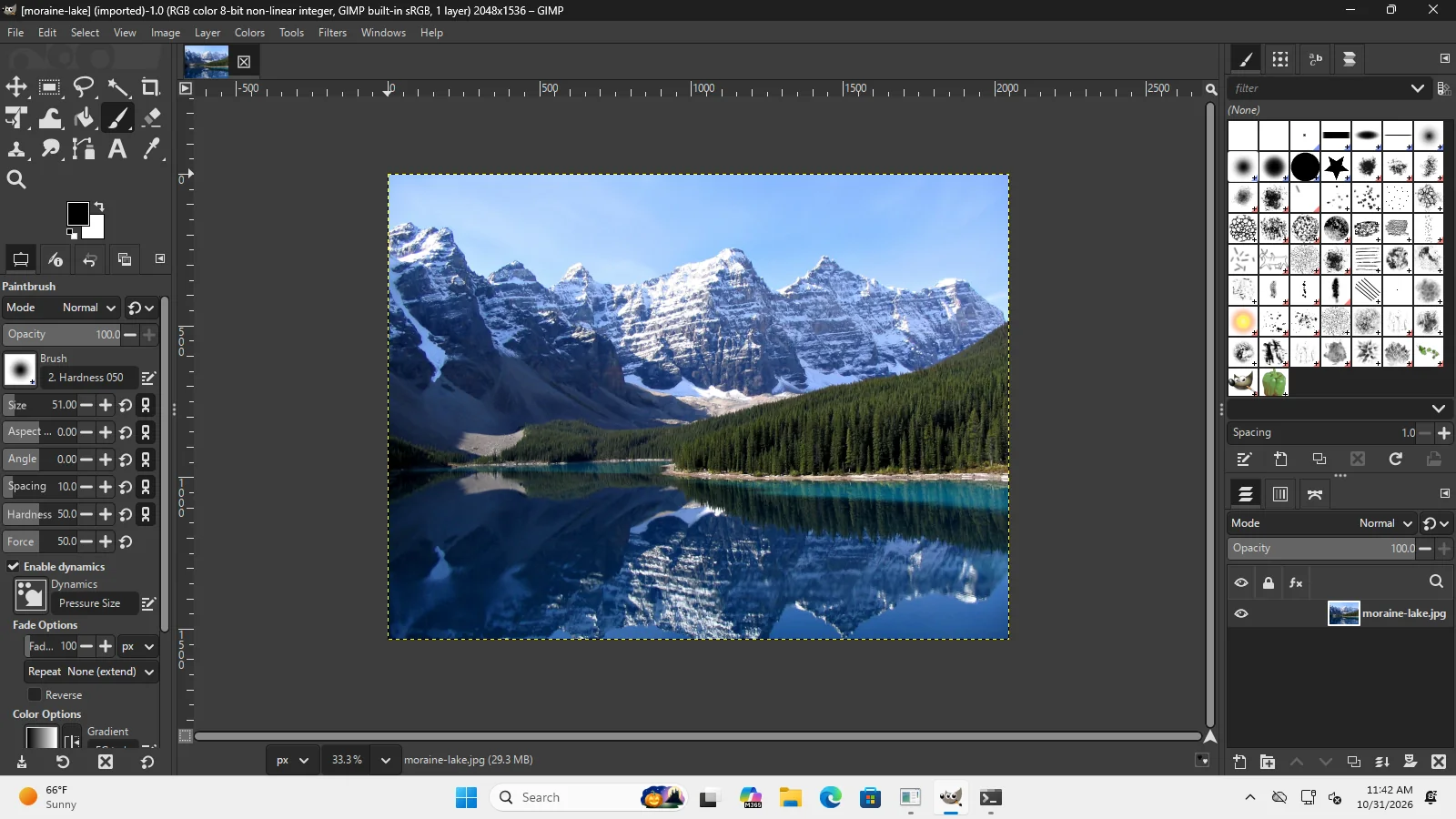
Real screenshot · Windows Server 2025 (x64) · GIMP 3.2.6PhotoGIMP 3.1 on GIMP 3.2.6 on Windows, installed with the PowerShell command from our path finder: Photoshop toolbox order, docks on the right.PhotoGIMP: 3.1 installed with our PowerShell command · taken 2026-10-31
Run gimp-3.2.6-setup.exe from gimp.org. Installing “for me only” puts GIMP in %LOCALAPPDATA%\Programs\GIMP 3 and adds a Start menu and desktop shortcut called GIMP 3.2.6. Start GIMP, wait for the window, then close it. This first start creates GIMP’s settings folder.
Download and extract PhotoGIMP
Download PhotoGIMP.zip from GitHub. Right-click it → Extract All → Extract. Inside is a single folder named 3.0. Keep that name; you will copy what is inside it.
Real screenshot · Windows Server 2025 (x64) · GIMP 3.2.6PhotoGIMP.zip extracted on the Desktop: it contains one folder, 3.0.PhotoGIMP: none · taken 2026-10-31
Open GIMP’s settings folder
Press Windows+R, type %APPDATA%\GIMP and press Enter.
Real screenshot · Windows Server 2025 (x64) · GIMP 3.2.6The Run dialog (Windows key + R) with %APPDATA%\GIMP typed in.PhotoGIMP: none · taken 2026-10-31
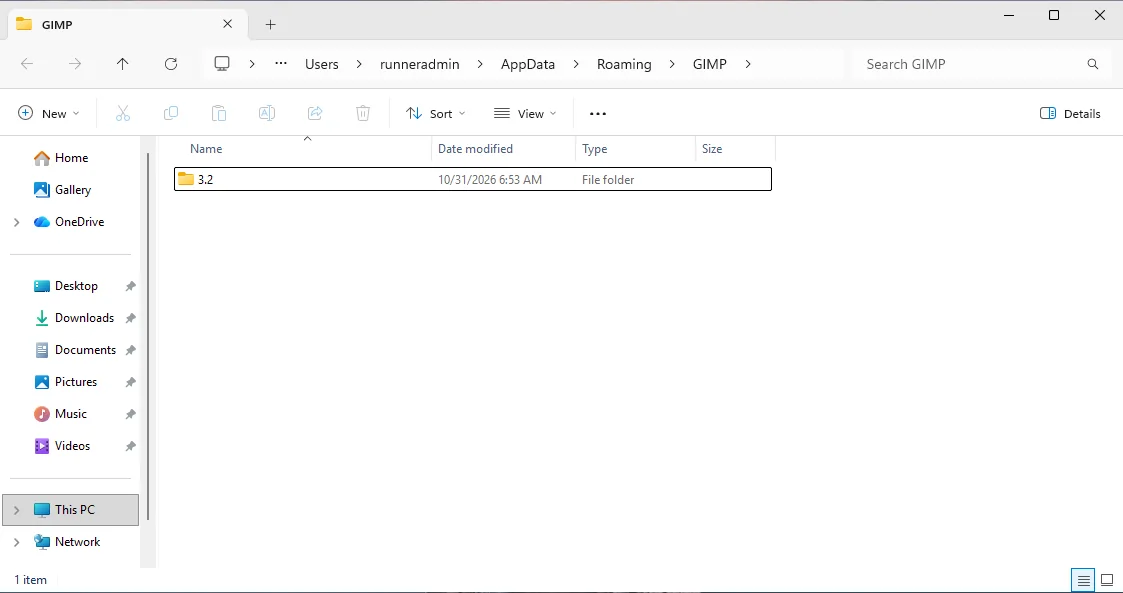
File Explorer opens AppData\Roaming\GIMP. After GIMP 3.2.6’s first start it contains one folder, 3.2. That is where PhotoGIMP goes.
Real screenshot · Windows 11 (Arm64) · GIMP 3.2.6AppData → Roaming → GIMP on Windows 11 after GIMP 3.2.6’s first start: one folder, 3.2.PhotoGIMP: none · taken 2026-10-31
Copy the files into 3.2
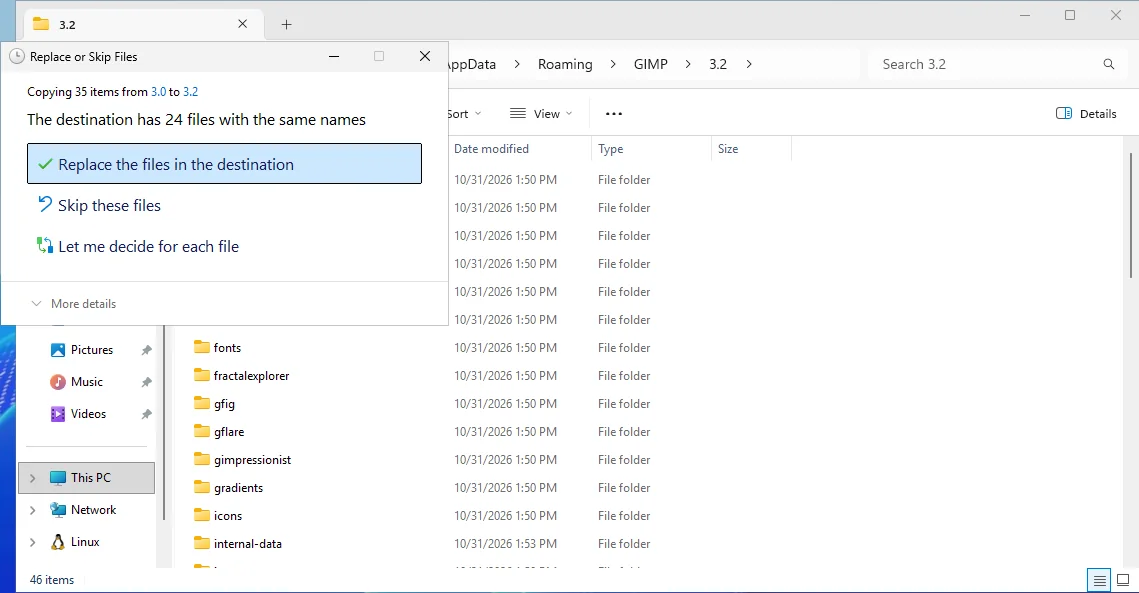
Open the extracted 3.0 folder, press Ctrl+A, then Ctrl+C. Open %APPDATA%\GIMP\3.2 and press Ctrl+V. Explorer asks what to do with files that already exist: choose Replace the files in the destination.
Real screenshot · Windows Server 2025 (x64) · GIMP 3.2.6Explorer reported 35 items to copy, 24 of which already existed in 3.2 (the same numbers on our Windows 11 machine). Choose “Replace the files in the destination”.PhotoGIMP: 3.1 · taken 2026-10-31
Apply the GIMP 3.2 fix
In %APPDATA%\GIMP\3.2, right-click toolrc → Open with → Notepad. Press Ctrl+H, replace "gimp-vector-tool" with "gimp-path-tool", save. Do the same in sessionrc ("gimp-vectors-list" → "gimp-path-list") and shortcutsrc ("tools-vector" → "tools-path"). Notepad saves them as plain text; do not add .txt. Why this is needed.
Start GIMP
You see the PhotoGIMP splash, GIMP’s “You installed GIMP 3.2.6!” welcome (close it; it usually appears only once), and the PhotoGIMP layout: one column of tools, Tool Options and Layers on the right.
Files next to 3.2 instead of inside it. Dropping the extracted 3.0 folder into %APPDATA%\GIMP gives you 3.0 and 3.2 side by side. GIMP 3.2 ignores 3.0, and nothing changes. We tried it.
Real screenshot · Windows Server 2025 (x64) · GIMP 3.2.6The common mistake: 3.0 copied next to 3.2. GIMP 3.2.6 started unchanged.PhotoGIMP: 3.1 copied as 3.0 · taken 2026-10-31
Roaming, not Local. GIMP also creates AppData\Local\GIMP\3.2 for caches. Files pasted there do nothing. %APPDATA% always opens Roaming.
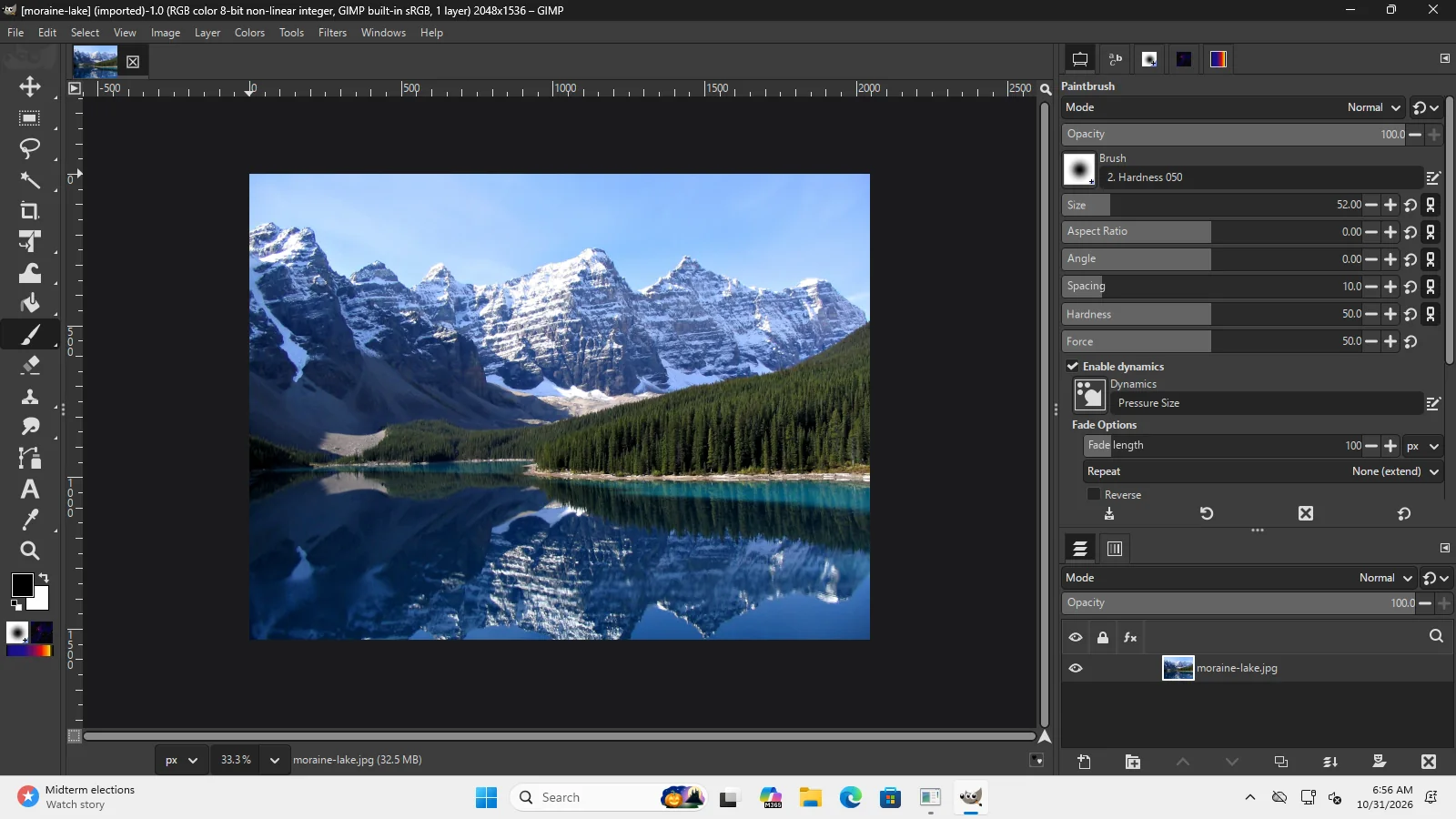
Skipping the fix on GIMP 3.2. Shortcuts and layout work, but the toolbox stays in GIMP’s order, and GIMP saves that order when you close it. Copy toolrc again before fixing. Below, the README way without the fix:
Real screenshot · Windows 11 (Arm64) · GIMP 3.2.6PhotoGIMP 3.1 pasted into GIMP 3.2.6 on Windows 11.PhotoGIMP: 3.1, pasted into 3.2 · taken 2026-10-31
GIMP open while copying. GIMP rewrites its settings when it closes. Close it first; the PowerShell command checks for you.
Dialogs off-screen on a laptop. PhotoGIMP saves window sizes from a large monitor. Move or resize the window and quit GIMP normally, or reset all window positions (which also removes PhotoGIMP’s dock layout). Both fixes.
The release includes photogimp.ico. On our test machines the GIMP 3.2.6 installer created a desktop shortcut and a Start menu shortcut, both named GIMP 3.2.6 (the README still says “GIMP 3.0.0”).
Save the icon somewhere permanent
For example %APPDATA%\GIMP\photogimp.ico. If you delete the file later, the shortcut loses its icon.
Change the shortcut’s icon
Right-click the GIMP 3.2.6 desktop shortcut → Properties → Change Icon… → Browse → pick photogimp.ico → OK. For the Start menu shortcut, right-click it in Start → More → Open file location, then do the same.
choco install photogimp installs community package 3.0.0. We ran it on Windows 11 and Windows Server 2025 with GIMP 3.2.6: it downloaded the old PhotoGIMP 3.0 release and extracted it to %APPDATA%\GIMP\3.0. On a GIMP that had already been started, GIMP 3.2 ignored that folder and looked unchanged. Installed before GIMP 3.2’s first start, it took effect through GIMP’s migration, but with the older PhotoGIMP 3.0 files. Use the steps above until the package is updated.
Real screenshot · Windows 11 (Arm64) · GIMP 3.2.6After choco install photogimp on a GIMP 3.2.6 that had already been started once: the package went into a 3.0 folder and GIMP is unchanged (Windows 11).PhotoGIMP: Chocolatey package 3.0.0 · taken 2026-10-31
Settings: %APPDATA%\GIMP\3.2 (C:\Users\you\AppData\Roaming\GIMP\3.2). Program: %LOCALAPPDATA%\Programs\GIMP 3 for a “just me” install, or C:\Program Files\GIMP 3 for all users. PhotoGIMP goes into the settings folder.
Does PhotoGIMP need administrator rights on Windows?
No. Everything happens in your own AppData folder. Run PowerShell normally, not as administrator.
Is there a PhotoGIMP .exe installer?
No. PhotoGIMP is a zip of settings files. Any PhotoGIMP .exe is not from the project.
Does PhotoGIMP work on Windows 10?
Yes. The steps and folders are the same; GIMP 3.2.6’s installer needs Windows 10 version 1903 or newer. GitHub no longer offers Windows 10 test machines, so we ran every step on Windows Server 2022, which is built on the same generation of Windows: every file came out identical to our Windows 11 and Server 2025 runs.
Does it work with GIMP from the Microsoft Store?
Yes. We installed GIMP 3.2.6 from the Microsoft Store (package 3.2.60.0): it keeps its settings in the same %APPDATA%\GIMP\3.2 folder as the installer version, not in a private app folder, so the same steps and the same PowerShell command apply. PhotoGIMP with the fix was still there after quitting and reopening GIMP.
Does PhotoGIMP work on Windows on Arm?
Yes. We tested on Windows 11 Arm64 with GIMP’s native Arm64 build. PhotoGIMP contains no program code, so the processor does not matter.
PowerShell says running scripts is disabled
You are pasting commands, not running a script file, so the execution policy does not apply. If you saved the commands as a .ps1 file, run them by pasting instead.