Keyboard shortcuts
PhotoGIMP shortcuts, next to Photoshop’s and GIMP’s
PhotoGIMP 3.1 gives 29 GIMP 3.2.6 commands new keys so your Photoshop habits work: tool letters, Ctrl+J, Ctrl+T, Ctrl+D, brush hardness on { }. Everything on this page is generated from PhotoGIMP’s own shortcutsrc and a stock GIMP 3.2.6 profile, and the important keys were pressed in real GIMP.
On this page 7 sections
Short answer
The shortcuts that change most
Tools: V Move · M Rectangle Select · L Free Select (lasso) · W Fuzzy Select (magic wand) · C Crop · I Color Picker · J Healing · B Paintbrush · S Clone · E Eraser · G Gradient · O Dodge/Burn · P Paths · T Text · Z Zoom.
Commands: Ctrl+J duplicate layer · Ctrl+T transform · Ctrl+D deselect · Ctrl+E merge visible · Ctrl+0 fit in window · Ctrl+Alt+I image size · Ctrl+Alt+C canvas size · Alt/Ctrl+Backspace fill with foreground/background · [ ] brush size · { } hardness. On a Mac, Ctrl is Cmd and Alt is Option.
Press any key
Click the keyboard (or press Tab until it is focused) and press any key or combination. Click Ctrl, Alt or Shift to lock them. Keys with a raspberry outline do what Photoshop does with that key.
The interactive keyboard needs JavaScript. Every shortcut is also in the table below.
Press a key: for example V, Ctrl+J or [.
Every PhotoGIMP shortcut
The 39 commands that have a key with PhotoGIMP 3.1 on GIMP 3.2.6 (with the GIMP 3.2 fix, as our install command applies it), with the Photoshop key for the same command (Windows keys, from Adobe’s default shortcut list) and what GIMP 3.2.6 uses without PhotoGIMP. Type in the box to filter.
| Command | PhotoGIMP | Stock GIMP 3.2 | Photoshop |
|---|---|---|---|
| 3D Transform | Shift+W | Shift+W | — |
| Align and Distribute | Q | Q | — |
| Blur / Sharpen | Shift+R | Shift+U | — |
| Paint BucketGIMP: Bucket Fill | Shift+G | Shift+B | G(Shift+G cycles) |
| Clone StampGIMP: Clone | S | C | S |
| EyedropperGIMP: Color Picker | I | O | I |
| Crop | C | Shift+C | C |
| Dodge / Burn | O | Shift+D | O |
| Elliptical MarqueeGIMP: Ellipse Select | Shift+M | E | M(Shift+M cycles) |
| Eraser | E | Shift+E | E |
| LassoGIMP: Free Select | L | F | L |
| Magic WandGIMP: Fuzzy Select | W | U | W |
| Gradient | G | G | G |
| Healing Brush / Spot HealingGIMP: HealingGIMP’s Heal tool works like Photoshop’s Healing Brush (Ctrl-click a source in GIMP, Alt-click in Photoshop). There is no Spot Healing or content-aware healing in GIMP itself. | J | H | J |
| Move toolGIMP: Move | V | M | V |
| BrushGIMP: Paintbrush | B | P | B |
| Pencil | N | N | B(Shift+B cycles) |
| Rectangular MarqueeGIMP: Rectangle Select | M | R | M |
| Scale | Shift+T | Shift+S | — |
| Select by Color | Shift+O | Shift+O | — |
| Smudge | R | S | — |
| Horizontal TypeGIMP: Text | T | T | T |
| Free TransformGIMP: Unified TransformGIMP’s Unified Transform does scale, rotate, shear and perspective in one tool, like Free Transform. | Ctrl+T | Shift+T | Ctrl+T |
| Zoom | Z | Z | Z |
| Add Paths to SelectionPhotoshop uses A for the Path Selection tool. PhotoGIMP uses A for "add path to selection". | A | none | — |
| Brush Hardness (Editor): Decrease by 0.1 | { | none | — |
| Brush Hardness (Editor): Increase by 0.1 | } | none | — |
| Canvas SizeGIMP: Canvas Size…GIMP calls it Canvas Size; the dialog lets you resize the canvas without scaling pixels. | Ctrl+Alt+C | none | Alt+Ctrl+C |
| New Layer via CopyGIMP: Duplicate Layers | Ctrl+J | Ctrl+Shift+D | Ctrl+J |
| Fill with background colorGIMP: Fill with BG Color | Ctrl+Backspace | Ctrl+. | Ctrl+Backspace |
| Fill with foreground colorGIMP: Fill with FG Color | Alt+Backspace | Ctrl+, | Alt+Backspace |
| Fit on ScreenGIMP: Fit Image in Window | Ctrl+0 | Ctrl+Shift+J | Ctrl+0 |
| Change screen modeGIMP: Fullscreen | F | F11 | F |
| Merge VisibleGIMP: Merge Visible Layers…PhotoGIMP puts Merge Visible Layers on Ctrl+E. In Photoshop Ctrl+E is Merge Down (Merge Visible is Shift+Ctrl+E).Shares its key with a GIMP default, see collisions. | Ctrl+E | Ctrl+M | Shift+Ctrl+E |
| Image SizeGIMP: Scale Image… | Ctrl+Alt+I | none | Alt+Ctrl+I |
| DeselectGIMP: Select NoneShares its key with a GIMP default, see collisions. | Ctrl+D | Ctrl+Shift+A | Ctrl+D |
| Quick Mask modeGIMP: Toggle Quick Mask | Shift+Q | Shift+Q | Q |
| Decrease brush sizeGIMP: Tool's Size: Decrease by 1 | [ | [ | [ |
| Increase brush sizeGIMP: Tool's Size: Increase by 1 | ] | ] | ] |
Keys PhotoGIMP shares with GIMP
PhotoGIMP assigns some keys that GIMP 3.2.6 already uses for something else, and leaves GIMP’s binding in place. In GIMP 3.2.6 with PhotoGIMP 3.1 and the GIMP 3.2 fix these are:
| Key | PhotoGIMP gives it to | GIMP 3.2 also uses it for |
|---|---|---|
| Ctrl+D | Select None | Duplicate |
| Ctrl+E | Merge Visible Layers… | Export… |
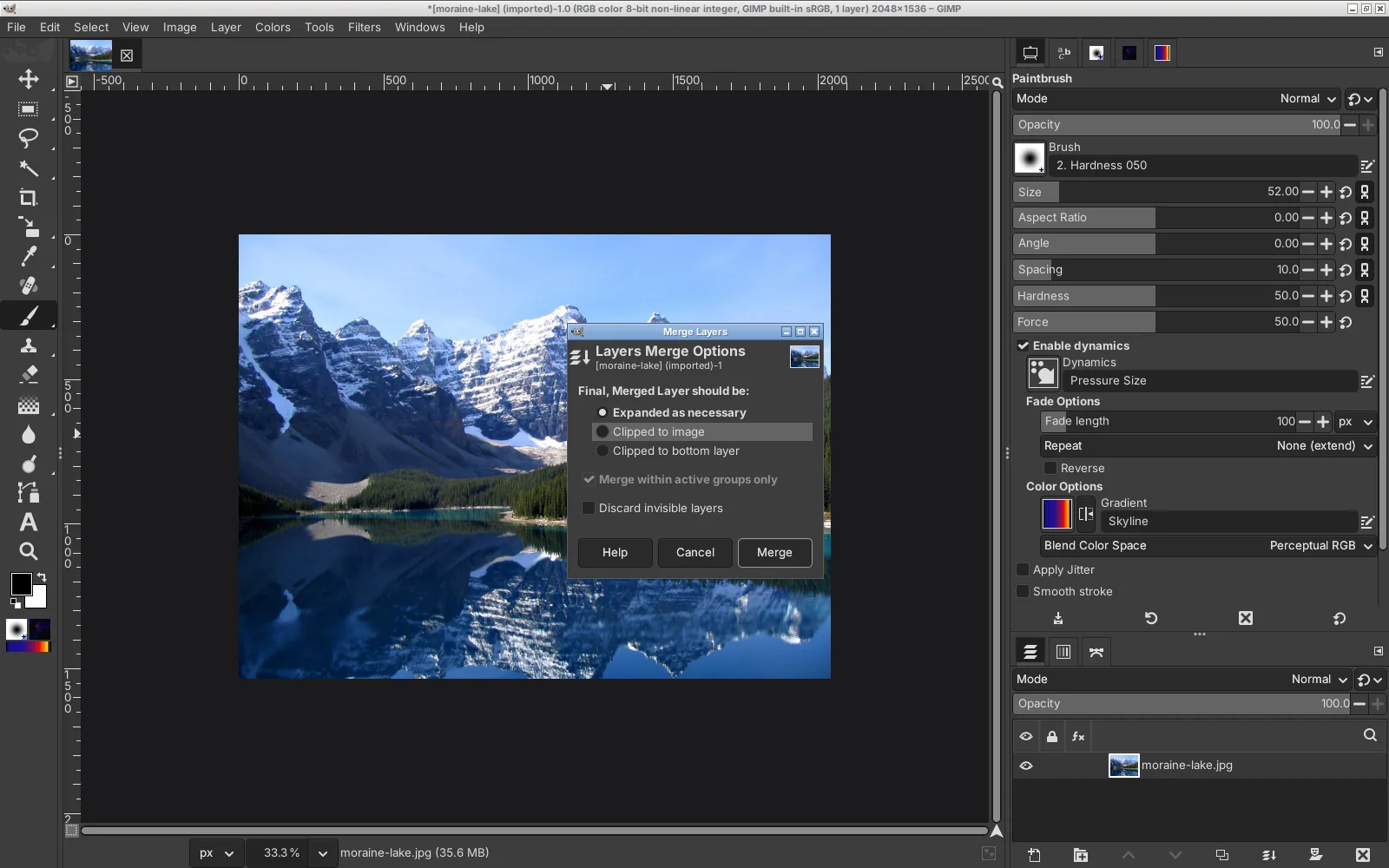
We pressed Ctrl+D and Ctrl+E in GIMP 3.2.6 with PhotoGIMP: Ctrl+D removed the selection without duplicating the image, and Ctrl+E opened Merge Layers instead of Export. PhotoGIMP’s action wins, so GIMP’s own action simply loses its shortcut. Without the fix, B is shared too: the release’s line that takes B away from the Paths tool uses the GIMP 3.0 name, so on GIMP 3.2 B selects both the Paintbrush and Paths (the fix removes it from Paths; Paths then has no key, since 3.1 does not bind P).
Upstream master adds two more shared keys:
| Key | PhotoGIMP gives it to | GIMP 3.2 also uses it for |
|---|---|---|
| Ctrl+D | Select None | Duplicate |
| Ctrl+E | Merge Visible Layers… | Export… |
| Shift+L | Scissors Select | Handle Transform |
| Shift+V | Align and Distribute | Selection From Paths |
Photoshop keys PhotoGIMP does not change
PhotoGIMP covers tools and the most common commands, not every Photoshop habit. This is what happens in GIMP 3.2.6 with PhotoGIMP when you press other Photoshop keys:
| Key | In Photoshop | In GIMP 3.2 with PhotoGIMP | Do this instead |
|---|---|---|---|
| Ctrl+Shift+Z | Redo | Strong Undo | Ctrl+Y is Redo in GIMP. |
| Ctrl+L | Levels | Layers Dialog | Colors → Levels. |
| Ctrl+M | Curves | nothing | Colors → Curves. |
| Ctrl+U | Hue/Saturation | nothing | Colors → Hue-Saturation. |
| Ctrl+I | Invert (colors) | Invert Selection | Colors → Invert. In GIMP, Ctrl+I inverts the selection. |
| Ctrl+Shift+I | Inverse (selection) | nothing | Ctrl+I. |
| Ctrl+G | Group Layers | Gradients Dialog | Layer → New Layer Group. |
| Ctrl+Shift+E | Merge Visible | Export As… | Ctrl+E with PhotoGIMP. |
| Ctrl+B | Color Balance | Toolbox | Colors → Color Balance. |
| Ctrl+Shift+U | Desaturate | nothing | Colors → Desaturate. |
| Ctrl+R | Rulers | nothing | Ctrl+Shift+R. |
| Ctrl+; | Show Guides | Fill with Pattern | Ctrl+Shift+T. |
| Ctrl+K | Preferences | nothing | Edit → Preferences. |
| Ctrl+1 | 100% zoom | Open Recent Image 1 | 1 (without Ctrl). |
| Ctrl+W | Close document | Close View | Same idea: closes the image view. |
| H | Hand tool | nothing | Hold Space and drag, as in Photoshop. |
| R | Rotate View | Smudge | Shift+drag with the middle button, or View → Flip & Rotate. |
| Y | History Brush | MyPaint Brush | GIMP has no history brush. |
| U | Shape tools | nothing | Ellipse or Rectangle Select, then Edit → Fill with FG Color or Edit → Stroke Selection. |
| A | Path Selection | Add Paths to Selection | Paths tool in Edit mode (pick it in the toolbox; it has no key with PhotoGIMP 3.1). |
| K | Frame tool | Ink | No equivalent. |
| Shift+F5 | Fill dialog | nothing | Alt+Backspace / Ctrl+Backspace with PhotoGIMP, or Edit → Fill with FG Color / BG Color / Pattern. |
| Ctrl+Shift+V | Paste in Place | Paste as New Image | Edit → Paste In Place. |
| Ctrl+Shift+C | Copy Merged | Copy Visible | Same: Copy Visible. |
| Ctrl+H | Show Extras | Anchor Floating Layer or Mask | View menu. |
Ctrl+Shift+Z is not Redo
In GIMP, Ctrl+Shift+Z is Strong Undo, which undoes the last step while skipping visibility changes. Redo is Ctrl+Y. PhotoGIMP does not change either. If you redo by habit, bind Redo to Ctrl+Shift+Z yourself (see below).Change a shortcut in GIMP 3.2
Open the shortcut editor
Edit → Keyboard Shortcuts. (Or press /, type “keyboard”, press Enter.) With PhotoGIMP the window may open very large or off-screen; see the fix.Find the command
Type part of its name in the search field, for example “redo” or “merge down”.Assign the key
Click the shortcut column of the command and press the new key. If the key is already used, GIMP asks whether to reassign it.Close the dialog
GIMP saves your change inshortcutsrcin your settings folder when it quits. Reinstalling PhotoGIMP overwrites that file, so note your changes.
Good candidates: Redo on Ctrl+Shift+Z, Merge Down on Ctrl+E (Photoshop’s meaning), Curves on Ctrl+M, Levels on Ctrl+L, Hue-Saturation on Ctrl+U.
Cheat sheet
Use “Print cheat sheet” above to print just this part, or save it as a PDF from the print dialog.
PhotoGIMP 3.1 shortcuts for GIMP 3.2.6 · photogimp.org
| Tool | Windows / Linux | Mac |
|---|---|---|
| Brush | B | B |
| Crop | C | C |
| Free Transform | Ctrl+T | Cmd+T |
| Eraser | E | E |
| Gradient | G | G |
| Eyedropper | I | I |
| Healing Brush / Spot Healing | J | J |
| Lasso | L | L |
| Rectangular Marquee | M | M |
| Pencil | N | N |
| Dodge / Burn | O | O |
| Align and Distribute | Q | Q |
| Smudge | R | R |
| Clone Stamp | S | S |
| Paint Bucket | Shift+G | Shift+G |
| Elliptical Marquee | Shift+M | Shift+M |
| Select by Color | Shift+O | Shift+O |
| Blur / Sharpen | Shift+R | Shift+R |
| Scale | Shift+T | Shift+T |
| 3D Transform | Shift+W | Shift+W |
| Horizontal Type | T | T |
| Move tool | V | V |
| Magic Wand | W | W |
| Zoom | Z | Z |
| Command | Windows / Linux | Mac |
|---|---|---|
| Brush Hardness (Editor): Decrease by 0.1 | { | { |
| Brush Hardness (Editor): Increase by 0.1 | } | } |
| Fill with background color | Ctrl+Backspace | Cmd+Backspace |
| Fill with foreground color | Alt+Backspace | Option+Backspace |
| Merge Visible | Ctrl+E | Cmd+E |
| Canvas Size | Ctrl+Alt+C | Cmd+Option+C |
| Image Size | Ctrl+Alt+I | Cmd+Option+I |
| New Layer via Copy | Ctrl+J | Cmd+J |
| Add Paths to Selection | A | A |
| Quick Mask mode | Shift+Q | Shift+Q |
| Deselect | Ctrl+D | Cmd+D |
| Decrease brush size | [ | [ |
| Increase brush size | ] | ] |
| Change screen mode | F | F |
| Fit on Screen | Ctrl+0 | Cmd+0 |
| Redo | Ctrl+Y | Cmd+Y |
| Show toolbox | Ctrl+B | Cmd+B |
| Search any command | / | / |
Questions
How do I change the brush size with the keyboard in GIMP?
What is Ctrl+J in GIMP?
What is the GIMP equivalent of Ctrl+T (Free Transform)?
How do I deselect in GIMP?
Can I use Photoshop shortcuts in GIMP without PhotoGIMP?
Are PhotoGIMP shortcuts the same on Mac?
Keep going
Found something wrong or out of date? Tell us: hello@photogimp.org. We fix mistakes within a day.