Compare
PhotoGIMP vs GIMP
PhotoGIMP is not a different program. It is GIMP 3.2.6 with a different set of settings: the same features, filters and file formats, arranged and keyed for people who know Photoshop. The question is not which is better, but whose habits GIMP should follow: Photoshop’s or GIMP’s own.
On this page 5 sections
Short answer
The difference in one line each
- Same: every tool, filter, menu, file format and plug-in. No performance settings change. Same GIMP version.
- Different: toolbox order and shape, new keys for 29 commands, the dock layout, a few preferences and the splash screen.
- Choose PhotoGIMP if your hands know Photoshop. Stay with stock GIMP if they know GIMP, or if you follow GIMP tutorials, which use GIMP’s own keys.
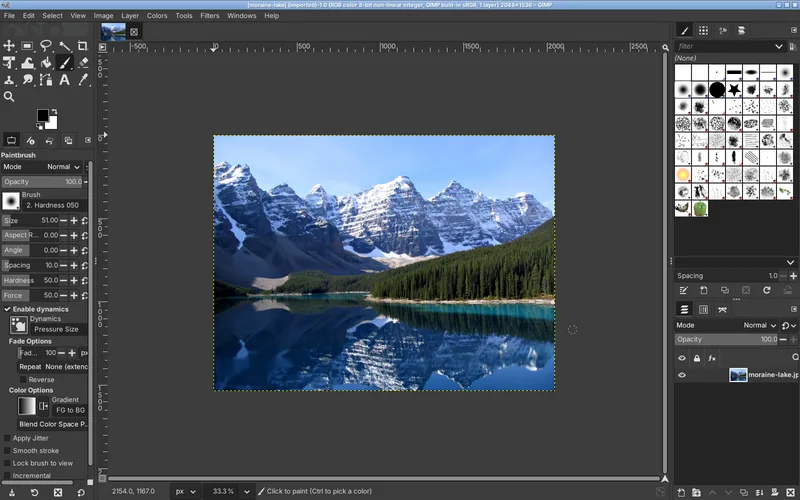
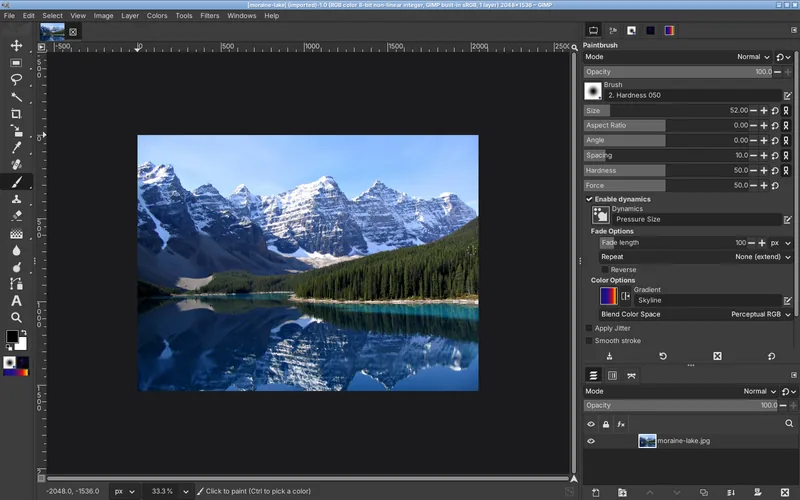
Side by side
| Compared | GIMP 3.2.6 as installed | With PhotoGIMP |
|---|---|---|
| Program and features | Identical. PhotoGIMP contains no program code. | |
| Toolbox | A grid of tool groups at the top left | One column in Photoshop’s order: Move, Rectangle Select, Free Select, Fuzzy Select, Crop, Color Picker, Healing… |
| Tool keys | GIMP’s: M Move, R Rectangle, P Paintbrush, U Fuzzy Select | Photoshop’s: V Move, M Rectangle, B Paintbrush, W Fuzzy Select |
| Command keys | Ctrl+Shift+D duplicate layer, Shift+T transform, Ctrl+Shift+A select none | Ctrl+J, Ctrl+T, Ctrl+D |
| Window | Single-window mode | Single-window mode, toolbox narrowed to one column, Tool Options and brushes top right, Layers bottom right |
| Around the image | Theme color, yellow layer outline, canvas outline | Dark grey (RGB 27, 27, 31), no layer or canvas outline |
| Opened JPEGs | No transparency: the eraser paints background color | Alpha channel added: the eraser makes transparent holes |
| Snap to canvas edges | Off | On |
| Layer thumbnails | Medium | Extra large |
| Minimum undo steps | 5 | 8 |
| Splash screen | GIMP artwork | PhotoGIMP artwork |
| On GIMP 3.2 | Works | Release 3.1 needs a small fix to keep its toolbox |
Every preference, with GIMP’s default next to it, is on What PhotoGIMP changes.
Every key that changes meaning
This is the real cost of PhotoGIMP: GIMP keys you may already know now do something else. Read from PhotoGIMP 3.1’s shortcutsrc and GIMP 3.2.6’s defaults. “(still)” means GIMP keeps its own command on that key as well, so one key triggers two bindings; in our test, the PhotoGIMP command won for Ctrl+D and Ctrl+E.
| Key | Stock GIMP 3.2 | With PhotoGIMP | The stock command is now on |
|---|---|---|---|
| { | Tool's Size: Decrease by 10 | Brush Hardness (Editor): Decrease by 0.1 | Tool's Size: Decrease by 10: no key |
| } | Tool's Size: Increase by 10 | Brush Hardness (Editor): Increase by 0.1 | Tool's Size: Increase by 10: no key |
| A | Airbrush | Add Paths to Selection | Airbrush: no key |
| B | Paths | Paintbrush | Paths: no key |
| C | Clone | Crop | Clone: S |
| E | Ellipse Select | Eraser | Ellipse Select: Shift+M |
| F | Free Select | Fullscreen | Free Select: L |
| H | Healing | nothing | Healing: J |
| I | Scissors Select | Color Picker | Scissors Select: no key |
| J | nothing | Healing | — |
| L | nothing | Free Select | — |
| M | Move | Rectangle Select | Move: V |
| O | Color Picker | Dodge / Burn | Color Picker: I |
| P | Paintbrush | nothing | Paintbrush: B |
| R | Rectangle Select | Smudge | Rectangle Select: M |
| S | Smudge | Clone | Smudge: R |
| U | Fuzzy Select | nothing | Fuzzy Select: W |
| V | nothing | Move | — |
| W | Warp Transform | Fuzzy Select | Warp Transform: no key |
| F11 | Fullscreen | nothing | Fullscreen: F |
| Ctrl+, | Fill with FG Color | nothing | Fill with FG Color: Alt+Backspace |
| Ctrl+. | Fill with BG Color | nothing | Fill with BG Color: Ctrl+Backspace |
| Ctrl+0 | Open Recent Image 10 | Fit Image in Window | Open Recent Image 10: no key |
| Ctrl+D | Duplicate | Duplicate (still), Select None | — |
| Ctrl+E | Export… | Export… (still), Merge Visible Layers… | — |
| Ctrl+J | Shrink Wrap | Duplicate Layers | Shrink Wrap: no key |
| Ctrl+M | Merge Visible Layers… | nothing | Merge Visible Layers…: Ctrl+E |
| Ctrl+T | Show Selection | Unified Transform | Show Selection: no key |
| Shift+B | Bucket Fill | nothing | Bucket Fill: Shift+G |
| Shift+C | Crop | nothing | Crop: C |
| Shift+D | Dodge / Burn | nothing | Dodge / Burn: O |
| Shift+E | Eraser | nothing | Eraser: E |
| Shift+G | Cage Transform | Bucket Fill | Cage Transform: no key |
| Shift+M | Measure | Ellipse Select | Measure: no key |
| Shift+R | Rotate | Blur / Sharpen | Rotate: no key |
| Shift+S | Scale | nothing | Scale: Shift+T |
| Shift+T | Unified Transform | Scale | Unified Transform: Ctrl+T |
| Shift+U | Blur / Sharpen | nothing | Blur / Sharpen: Shift+R |
| Ctrl+Alt+C | nothing | Canvas Size… | — |
| Ctrl+Alt+I | nothing | Scale Image… | — |
| Ctrl+Shift+A | Select None | nothing | Select None: Ctrl+D |
| Ctrl+Shift+D | Duplicate Layers | nothing | Duplicate Layers: Ctrl+J |
| Ctrl+Shift+J | Fit Image in Window | nothing | Fit Image in Window: Ctrl+0 |
| Alt+Backspace | nothing | Fill with FG Color | — |
| Ctrl+Backspace | nothing | Fill with BG Color | — |
The table shows PhotoGIMP 3.1 as released. With our GIMP 3.2 fix, B is the Paintbrush only: the release’s line that removes GIMP’s own B for Paths uses the GIMP 3.0 name, and the fix makes it work again.
Some GIMP commands lose their key without getting a new one, such as Airbrush, Scissors Select, Warp Transform and Measure. They are still in the Tools menu and the toolbox, and you can give them any free key in Edit → Keyboard Shortcuts.
Who should use which
PhotoGIMP
- You used Photoshop for years and want V, B, Ctrl+J and Ctrl+T to just work.
- You switch between Photoshop at work and GIMP at home.
- You follow Photoshop tutorials and translate them to GIMP.
- You want the dark canvas surround and an eraser that makes transparency without extra steps.
Stock GIMP
- You already know GIMP’s keys.
- You learn from GIMP tutorials or the GIMP manual: they use GIMP’s keys and toolbox.
- You customized GIMP and do not want those settings replaced.
- You use a small screen and do not want PhotoGIMP’s saved window sizes (see why).
The middle ground
You do not have to take all of PhotoGIMP. Its files are independent, so you can copy only shortcutsrc for the keys, only toolrc for the toolbox, or skip sessionrc to keep your window layout. Which file does what. And switching back is quick: remove PhotoGIMP or restore the backup our install command makes.
Questions
Is PhotoGIMP better than GIMP?
Is PhotoGIMP slower than GIMP?
Can I use GIMP tutorials with PhotoGIMP?
Can I have PhotoGIMP and normal GIMP side by side?
Keep going
Found something wrong or out of date? Tell us: hello@photogimp.org. We fix mistakes within a day.