Troubleshooting
PhotoGIMP not working? Find your problem
Every problem below comes from a real report in the PhotoGIMP issue tracker or from our own test runs on Windows, macOS and Linux. The error messages are copied exactly, so you can search this page for the text you see.
On this page 23 sections
- Check your files
- Problems and fixes
- PhotoGIMP did not change anything, or only the splash changed
- The toolbox is one column, but not in Photoshop’s order
- Error while parsing ‘…/3.2/toolrc’ in line 183: missing tools in toolrc file
- not existing action ‘tools-vector’ was ignored from the shortcutsrc file
- gimp_dialog_factory_dialog_new_internal: no entry registered for "gimp-vectors-list"
- PhotoGIMP won’t open from its icon: bwrap: execvp gimp-3.0: No such file or directory
- There is no install.sh in PhotoGIMP-linux.zip
- install.sh messages
- Windows open off-screen or bigger than the screen
- GIMP shows “You installed GIMP 3.2.6!” after installing PhotoGIMP
- The toolbox is not showing, or the docks disappeared
- Ctrl + D or Ctrl + E does something unexpected
- PhotoGIMP shortcuts do not work
- Heal Selection, Resynthesizer or content-aware fill is missing
- Errors or a crash with GIMP 2.10
- choco install photogimp had no effect
- Two GIMP folders on Windows: Roaming and Local
- macOS: Finder’s merge skipped files
- macOS asks: “Allow GIMP to find devices on local networks?”
- Only 8 undo steps?
- Still stuck?
Short answer
The three causes behind most reports
- Wrong folder. The files must go inside GIMP’s version folder (
3.2for GIMP 3.2), not next to it. Fix - GIMP 3.2 and PhotoGIMP 3.1. GIMP 3.2 renamed the Paths tool, so it throws away PhotoGIMP’s toolbox order. Fix
- GIMP was open while you copied the files. GIMP rewrites its settings when it quits. Close GIMP, copy again.
Check your files
Not sure what is installed? Give the checker the settings files from GIMP’s settings folder (%APPDATA%\GIMP\3.2, ~/Library/Application Support/GIMP/3.2 or ~/.config/GIMP/3.2). It compares them with the files from our test runs and looks for the problems below. Your browser reads them; nothing is uploaded.
On a Mac, the Library folder is hidden in the file picker: press Cmd+Shift+G in the dialog and paste the path. On Linux, press Ctrl+H to show .config.
Problems and fixes
PhotoGIMP did not change anything, or only the splash changed
Cause: GIMP did not read the files. Once GIMP 3.2 has created its 3.2 folder, it reads only that one; GIMP 3.0 reads only 3.0. In our tests, copying the zip’s 3.0 folder next to an existing 3.2 changed nothing at all on Windows, macOS and Linux. (Only before GIMP 3.2’s very first start does it pick up a 3.0 folder, by migrating it: how GIMP 3.2 migrates a 3.0 folder.)
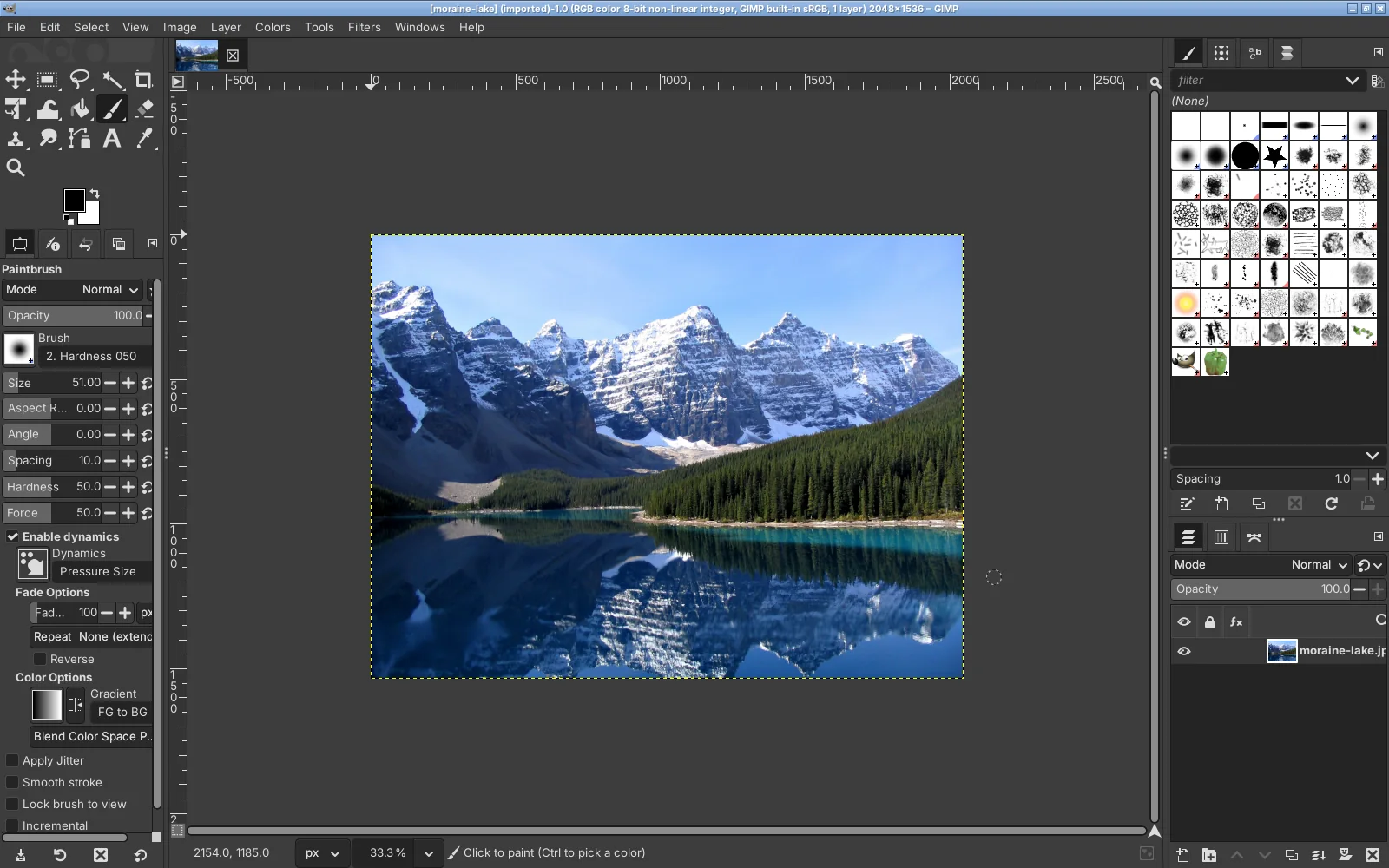
Fix: close GIMP, open the zip’s 3.0 folder, select everything inside it and paste it into your GIMP version folder, replacing files. Then apply the GIMP 3.2 fix. The path finder shows the exact folder for your system.
If the splash and panels changed but the toolbox is still GIMP’s grid, you are on GIMP 3.2 with the 3.1 files: see the next item.
- Windows:
%APPDATA%\GIMP\3.2is underAppData\Roaming. GIMP also createsAppData\Local\GIMP\3.2for caches; files pasted there are ignored. Roaming vs Local - Linux: extracting
PhotoGIMP-linux.zipinto your home folder creates~/PhotoGIMP-linux/; that installs nothing. The files must end up in~/.config/GIMP/3.2. - Microsoft Store and portable GIMP: these can keep settings in their own folders. In GIMP, open Edit → Preferences → Folders → Brushes: the folder above the first
brushespath is the settings folder.
The toolbox is one column, but not in Photoshop’s order
Cause: you are on GIMP 3.2 with PhotoGIMP 3.1. GIMP 3.2 renamed the Paths tool, rejects PhotoGIMP’s toolrc and uses its own order. The single column remains because it comes from another file. Once you quit GIMP, it overwrites toolrc with its defaults.
Fix: copy toolrc from the zip again, rename gimp-vector-tool to gimp-path-tool, then start GIMP. Full steps and repair commands: GIMP 3.2 fix.
Error while parsing ‘…/3.2/toolrc’ in line 183: missing tools in toolrc file
The full message GIMP 3.2.6 printed in our tests:
GIMP-Warning: Error while parsing '~/.config/GIMP/3.2/toolrc' in line 183: missing tools in toolrc fileLine 183 is the end of the file: GIMP read it all and found one tool it does not know (gimp-vector-tool) while its own gimp-path-tool was missing. Same cause and fix as above.
not existing action ‘tools-vector’ was ignored from the shortcutsrc file
An information message, not an error. PhotoGIMP 3.1’s shortcut file has a line (action "tools-vector") that removes the Paths tool’s key, so that B belongs to the Paintbrush alone. GIMP 3.2 calls the action tools-path and ignores the line, so B stays bound to Paths too. The fix renames it; the Paths tool then has no key (3.1 never gave it P). With master the message stays (master keeps the old name for GIMP 3.0) but is harmless, because master also binds tools-path.
gimp_dialog_factory_dialog_new_internal: no entry registered for "gimp-vectors-list"
PhotoGIMP’s window layout includes the Paths dock under its GIMP 3.0 name. GIMP 3.2 skips it, so the Paths tab is missing next to Layers and Channels. Rename gimp-vectors-list to gimp-path-list in sessionrc (part of the fix), or open it from Windows → Dockable Dialogs → Paths.
PhotoGIMP won’t open from its icon: bwrap: execvp gimp-3.0: No such file or directory
Linux, Flatpak only. The launcher (~/.local/share/applications/org.gimp.GIMP.desktop) from the PhotoGIMP 3.0 release starts the Flatpak with --command=gimp-3.0. The GIMP 3.2 Flatpak has no such command, so clicking the icon fails silently: PhotoGIMP doesn’t open and nothing seems to happen. Running the launcher’s Exec line in a terminal shows the error above (reported in issue #200).
Fix: use the launcher from 3.1, which runs --command=gimp, or edit yours:
sed -i 's/--command=gimp-3\.0/--command=gimp/' ~/.local/share/applications/org.gimp.GIMP.desktop
update-desktop-database ~/.local/share/applicationsThere is no install.sh in PhotoGIMP-linux.zip
Correct: the 3.1 release zip does not contain it (we unzipped it; issue #251). The script was added to the repository after that release. Use the commands on our install page, which do the same job and include the GIMP 3.2 fix, or run install.sh from the repository with the master files next to it, as shown in the Linux guide. Downloading only the script into the 3.1 folder mixes master’s installer with the old files.
install.sh messages
| Message | Meaning | What to do |
|---|---|---|
| No supported GIMP 3.x installation was detected. | The script looks for a Flatpak GIMP or a gimp-3.x / gimp command on your PATH. An AppImage or a Snap is not found that way. | Use our commands instead. For an AppImage, we had to give the script a gimp-3.2 command pointing at the AppImage. |
| Config directory does not exist yet. | GIMP has never started, so its settings folder is missing. | Start GIMP once, quit it, run the script again. |
| GIMP is currently running | GIMP is open. An older version of the script also said this when GIMP was not running (issue #238). | Quit GIMP. If the message stays, use the current script from master or our commands. |
Windows open off-screen or bigger than the screen
Cause (found in PhotoGIMP’s own files): PhotoGIMP’s sessionrc saves window positions and sizes from the computer it was made on: the main window at 1888×1011, Preferences at 1746×896 starting 1340 pixels from the left, the Color dialog 2559 pixels from the left, Keyboard Shortcuts at 1417×1416. On a laptop or a 1080p screen, these dialogs open partly off-screen. In our 1600×1000 test, Preferences started off the left edge.
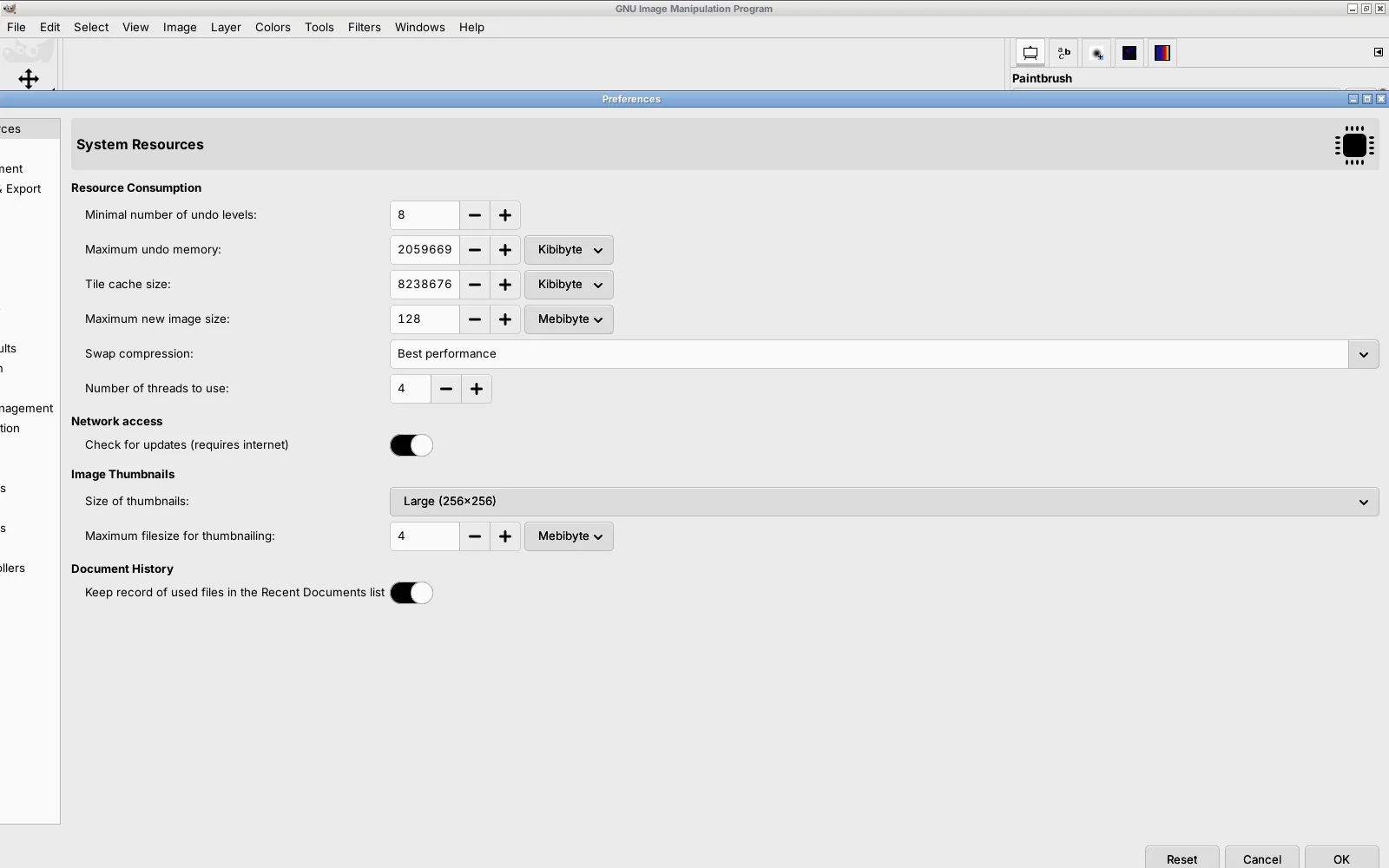
Fix that keeps PhotoGIMP’s layout: move and resize the window so it fits, then quit GIMP normally. GIMP saves window positions when it quits (that is its default), so it opens the same way next time. To move a window you cannot grab, press Alt+Space, choose Move and use the arrow keys (Windows), drag it with Alt or Super held (most Linux desktops), or double-click its title bar (macOS).
Quickest fix: Edit → Preferences (GIMP → Settings on a Mac) → Interface → Window Management → Reset Saved Window Positions to Default Values, then restart GIMP. This deletes GIMP’s window layout file, sessionrc, which is where PhotoGIMP’s dock arrangement lives: the panels go back to GIMP’s own arrangement and the toolbox to GIMP’s width. PhotoGIMP’s tool order, shortcuts and preferences stay. Users in issues #142 and #199 report the same off-screen problem.
GIMP shows “You installed GIMP 3.2.6!” after installing PhotoGIMP
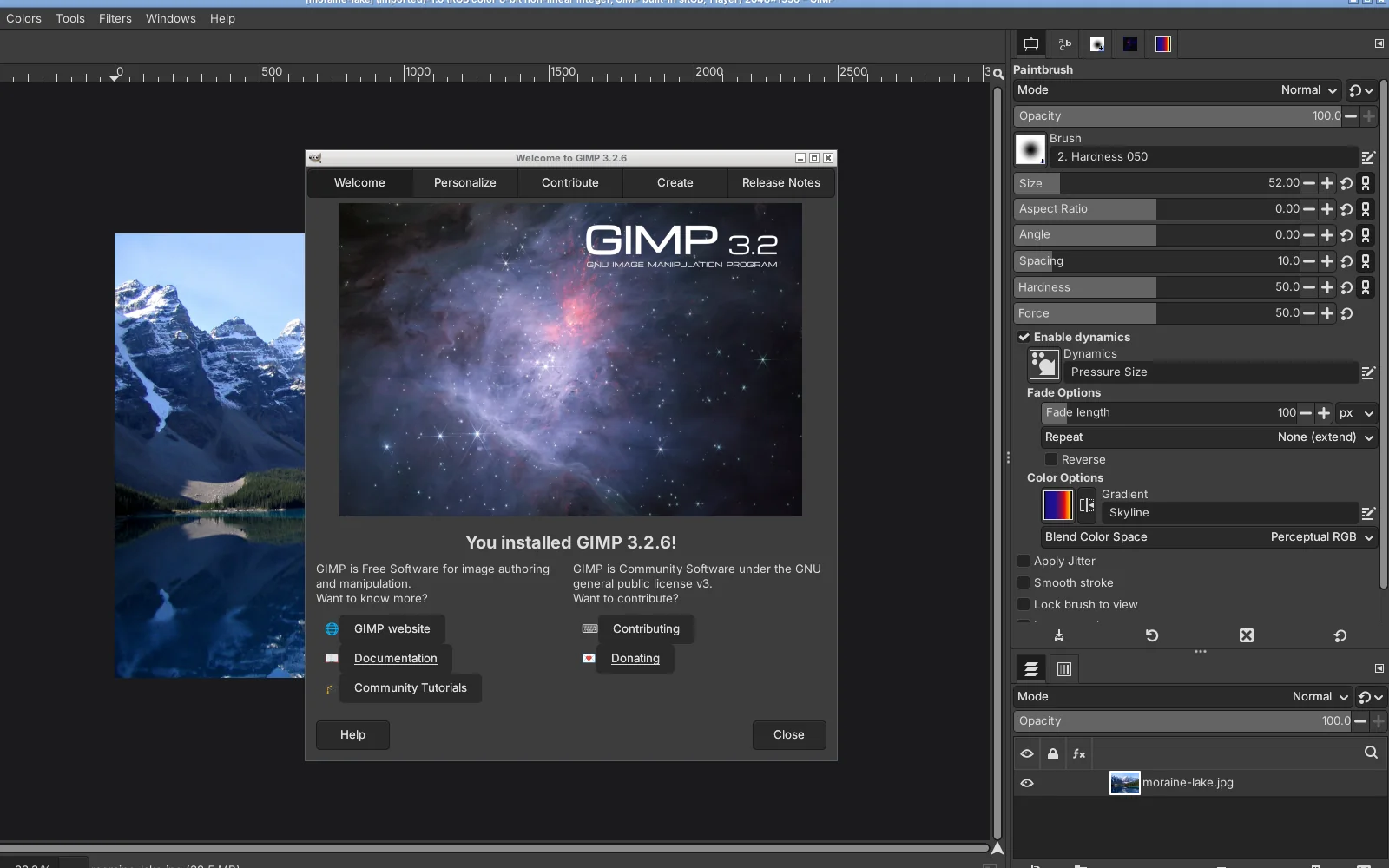
Expected, usually once. PhotoGIMP’s gimprc contains (config-version "3.0.0"), so GIMP 3.2 treats the folder as coming from an older GIMP and shows its welcome screen. When you quit, GIMP writes its own version into the file; in most of our tests the welcome did not come back on the next start (in the Windows runs without the fix it did). If it does every time, GIMP is not quitting normally (crash or forced close), or you can untick Show on Start in the dialog.
The toolbox is not showing, or the docks disappeared
- Toolbox: press Ctrl+B (GIMP’s default, which PhotoGIMP keeps) or choose Windows → Toolbox.
- All docks hidden: Windows → Hide Docks is a toggle; untick it.
- Windows scattered: Windows → Single-Window Mode puts everything back into one window, which is what PhotoGIMP uses.
- A dock is missing: Windows → Recently Closed Docks, or Windows → Dockable Dialogs.
- Everything is a mess: Edit → Preferences → Interface → Window Management → Reset Saved Window Positions to Default Values. This deletes the window layout file (
sessionrc), so PhotoGIMP’s dock arrangement goes too; its toolbox order, shortcuts and preferences stay.
Ctrl+D or Ctrl+E does something unexpected
PhotoGIMP gives these keys Photoshop’s meaning but leaves GIMP’s own use of the same key in place. We pressed them in GIMP 3.2.6 with PhotoGIMP: PhotoGIMP’s action won both times.
| Key | PhotoGIMP gives it to | GIMP 3.2 also uses it for |
|---|---|---|
| Ctrl+D | Select None | Duplicate |
| Ctrl+E | Merge Visible Layers… | Export… |
Without the GIMP 3.2 fix, B is shared too: it selects both the Paintbrush and the Paths tool.
- To export, use Shift+Ctrl+E (Export As) or File → Export.
- Note that Photoshop’s Ctrl+E is Merge Down. PhotoGIMP’s Ctrl+E opens Merge Visible Layers, which merges every visible layer.
Change any of them in Edit → Keyboard Shortcuts. All collisions, including master’s.
PhotoGIMP shortcuts do not work
- Check that PhotoGIMP is installed at all: press V. If the Move tool is not selected, the files are not in GIMP’s folder (above).
- If B sometimes picks the Paths tool instead of the Paintbrush, apply the GIMP 3.2 fix. (P for Paths exists only on master; release 3.1 leaves Paths without a key.)
- Keys like [ and ] are typed differently on non-US keyboards. We tested ] on Linux with US, UK, German, French, Spanish, Italian and Brazilian layouts, typed the way each layout needs it (AltGr+9 on German, AltGr+) on French): GIMP grew the brush every time. If a bracket still does nothing on your system, bind brush size to keys you can reach in Edit → Keyboard Shortcuts (search “size”).
- On macOS, PhotoGIMP’s Ctrl shortcuts are Cmd, and Alt is Option.
Heal Selection, Resynthesizer or content-aware fill is missing
PhotoGIMP 3 contains no plug-ins. The 2020 releases for GIMP 2.10 shipped Resynthesizer binaries that only worked on Linux (issue #11), which is where this expectation comes from. In GIMP 3.2, install Resynthesizer yourself for “Heal Selection”, or use the built-in Heal tool (J with PhotoGIMP). Plug-ins for Photoshop users.
Errors or a crash with GIMP 2.10
PhotoGIMP 3.1 is for GIMP 3. GIMP 2.10 uses a different settings format and reads 2.10. Install GIMP 3.2.6, or use the old PhotoGIMP 2020.1 release made for 2.10. If GIMP will not start after copying files, delete the version folder you copied into; GIMP recreates its defaults.
choco install photogimp had no effect
We ran it on Windows 11 and Windows Server 2025 with GIMP 3.2.6. Chocolatey installed package 3.0.0, which downloads the PhotoGIMP 3.0 release and extracts it into %APPDATA%\GIMP, creating a 3.0 folder. A GIMP 3.2 that has already been started has its own 3.2 folder and ignores 3.0, so nothing changed (if Chocolatey ran before GIMP 3.2’s very first start, GIMP migrated the folder and PhotoGIMP 3.0 appeared). choco uninstall photogimp removed the files and left an empty 3.0 folder. Use the Windows guide instead and delete the stray 3.0 folder if you do not use GIMP 3.0.
Two GIMP folders on Windows: Roaming and Local
On both Windows test machines GIMP 3.2.6 created AppData\Roaming\GIMP\3.2 (settings) and AppData\Local\GIMP\3.2 (caches). PhotoGIMP belongs in Roaming. %APPDATA% in the Run dialog always opens Roaming.
macOS: Finder’s merge skipped files
When you drag a folder onto one with the same name, Finder offers to Replace the whole folder or, with Option held, to Merge, which keeps existing files. Copying the files (select all inside 3.0, copy, paste into 3.2, choose Replace) avoids this. Or use the rsync or path-finder command from the Mac guide.
macOS asks: “Allow GIMP to find devices on local networks?”
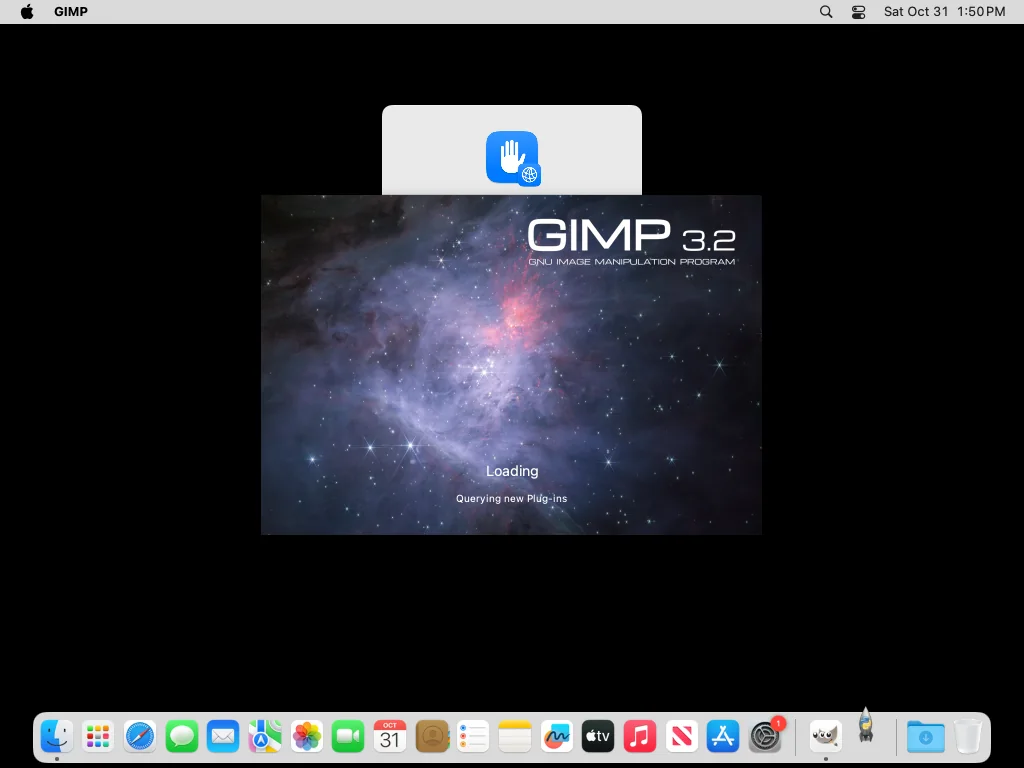
macOS 15 showed this the first time GIMP 3.2.6 started on our test Mac, before PhotoGIMP was installed. It comes from GIMP, not PhotoGIMP. We chose Don’t Allow and GIMP worked normally. You can change it later in System Settings → Privacy & Security → Local Network.
Only 8 undo steps?
No. PhotoGIMP sets the minimum number of undo levels to 8 (GIMP’s default is 5). GIMP keeps more steps as long as they fit in the undo memory limit (Edit → Preferences → System Resources).
Still stuck?
Start clean: reset GIMP’s settings, start GIMP once, quit, and install again with the path finder. If that fails, search or open an issue on PhotoGIMP’s GitHub with your system, GIMP version (Help → About) and how you installed it. For mistakes on this page, write to us.
Keep going
Found something wrong or out of date? Tell us: hello@photogimp.org. We fix mistakes within a day.